Why use project teams? When do project teams make sense?
In knowtion, all users initially see all projects by default. Over time, the number of projects in the project list can grow rapidly. In this case, it may make sense to restrict visibility or access to projects.
This can be achieved by changing the visibility settings to show only the user’s own projects plus explicitly assigned projects. And project teams are designed precisely for this kind of assignment.
Who can assemble project teams?
Project Owner: For projects they have created themselves, the creator can add or remove users from the project team.
Project Team Right: Do you want to assemble a project team for a project that you didn’t create? To do so, you need a special user right called “Project Teams”. An admin can grant you this permission via User Management.
You can find more information about assigning permissions in User Management here:
Managing users
How can I create, change or delete users?
How do I put together a project team?
Do you have the right to put together a project team, or do you want to do so for a project you created yourself? Here’s how:
Open the project list
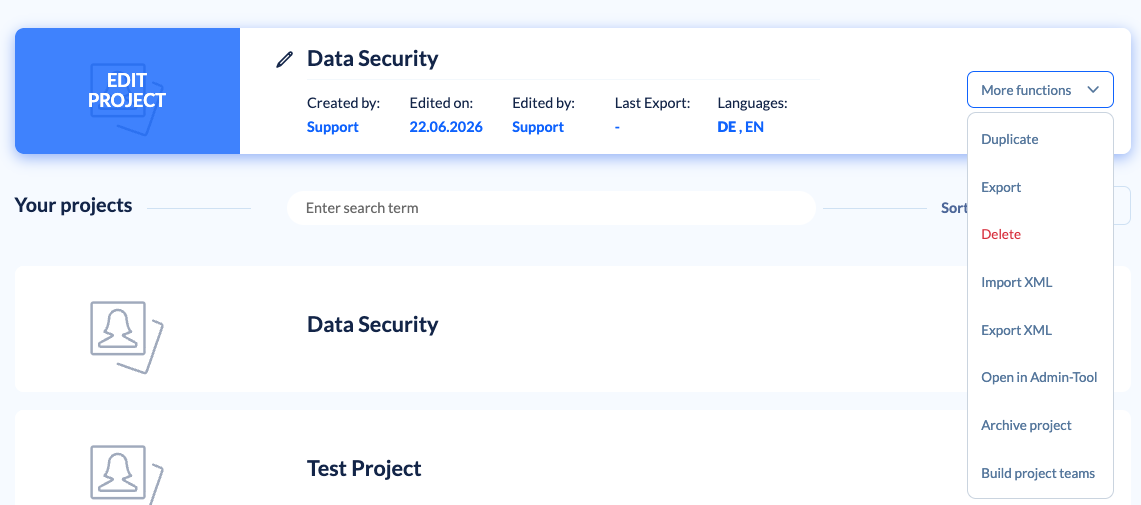
Navigate to the desired project and click the small down arrow on the right next to “More functions”
Select the bottom option “Build project teams”
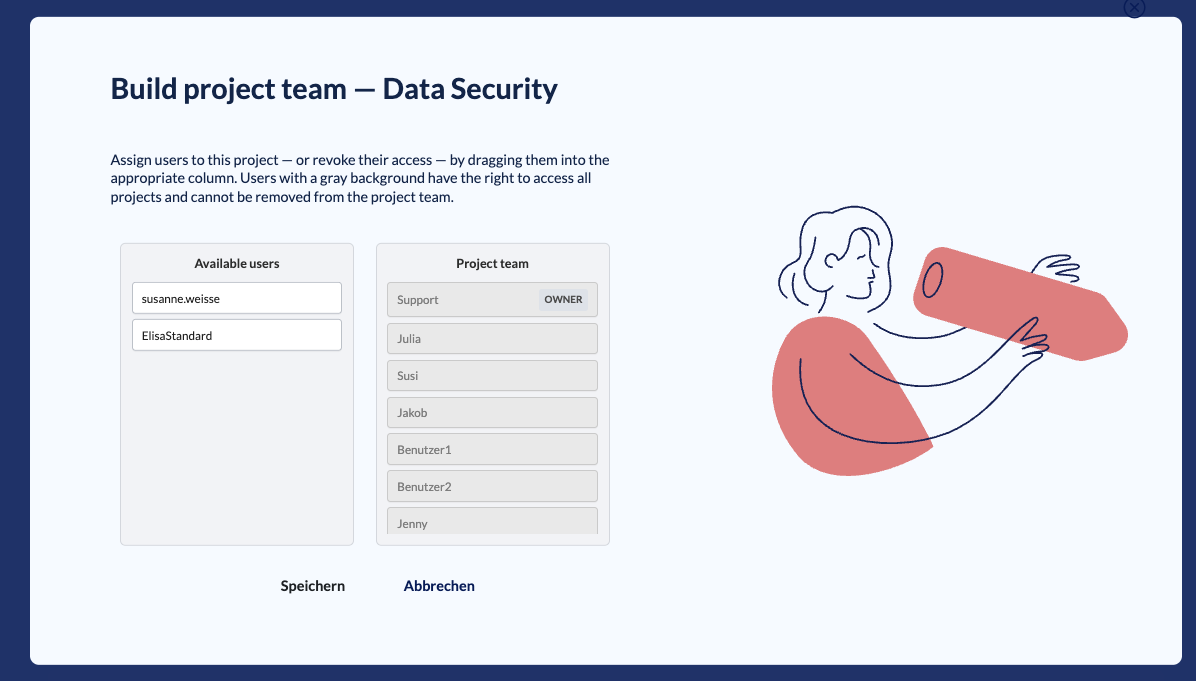
Select the users you want to add or remove and drag them to the appropriate column. Users with a gray background are the project owner or have the right to access all projects and cannot be removed from the project team. Users highlighted in white can be moved and will only see the project if they have been moved to the Project Team column.
Then save the assignment.

This is a unique combination of permissions. It’s possible that someone else might invite me to join their project. The “Project Teams” right allows me to add or remove users from that project as well. This includes myself—since I didn’t create the project and don’t have permission to view all projects. In this case, a warning appears informing me that I’m about to remove myself.
Our Recommendation
Do you want to work with project teams? We recommend using two distinct roles:
Users: Set the users’ visibility to “My Projects” and, for projects that should be visible to multiple people, set up the appropriate project teams using the step-by-step instructions above.
—> Alternatively, inform the project owners and ask them to assemble the project team themselves.Project Admins: Can view ALL projects and have the “Assemble Project Team” permission —meaning they can assemble a project team for any project.