Managing users
How can I create, change or delete users?
Where can I find the user administration?
If you have the right to manage users, you will find the option to do so under the burger menu at the top left -> Settings -> Usermanagement.

Important: You can ALWAYS create a reviewer. You can only create other users if you have a floating licence. We create the so called “named users” for you.
Create user
To create a new user, scroll down and click on the ‘Add user’ button
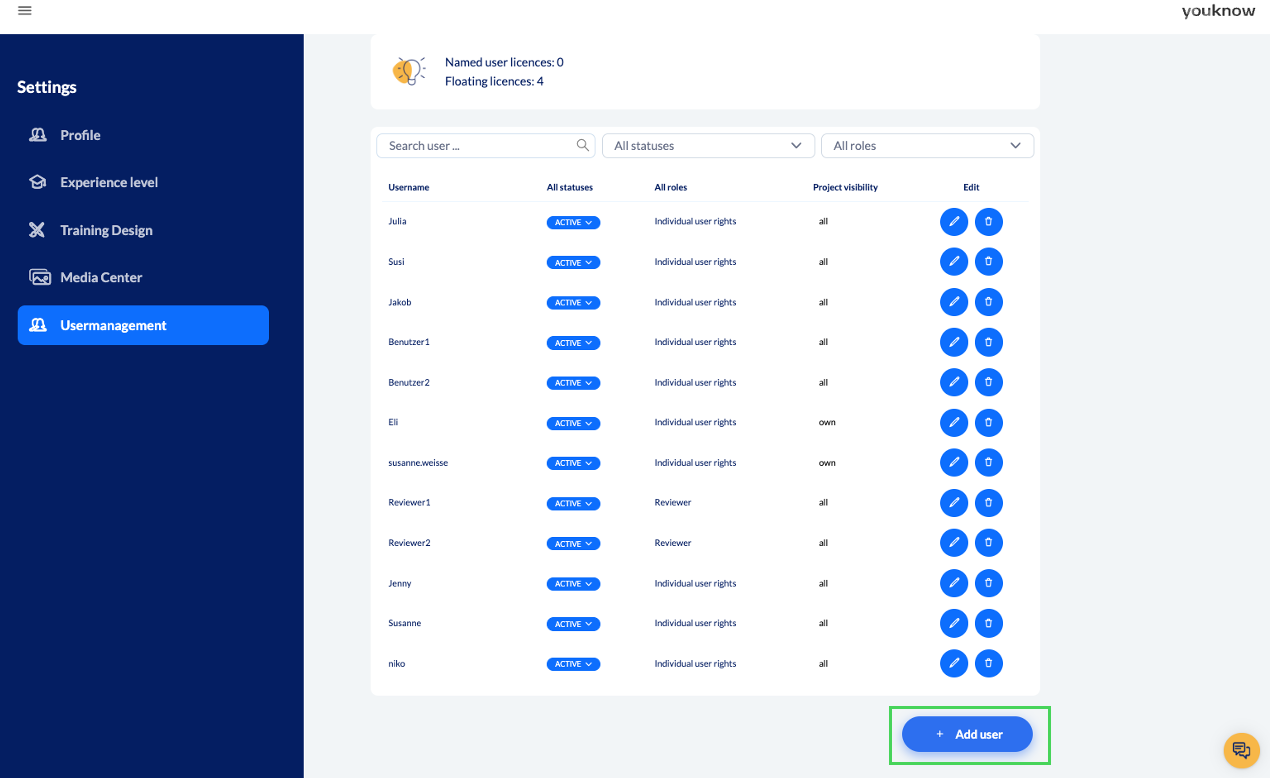
A pop-up will then open in which you can fill in the fields and assign rights.
User name: It is important that the user name cannot be changed at a later date
First name and surname: These are not mandatory fields, but if you are working with user1, user2 etc. as user names, it is advisable to add the name here for reasons of clarity. In addition, the person will then be greeted with the first name and surname entered after logging in on the knowtion start page (or alternatively only the first name if only this is filled in).
E-mail address: This is a mandatory field. It allows you to send the user access directly to the new user by ticking the small box at the bottom left of the pop-up.

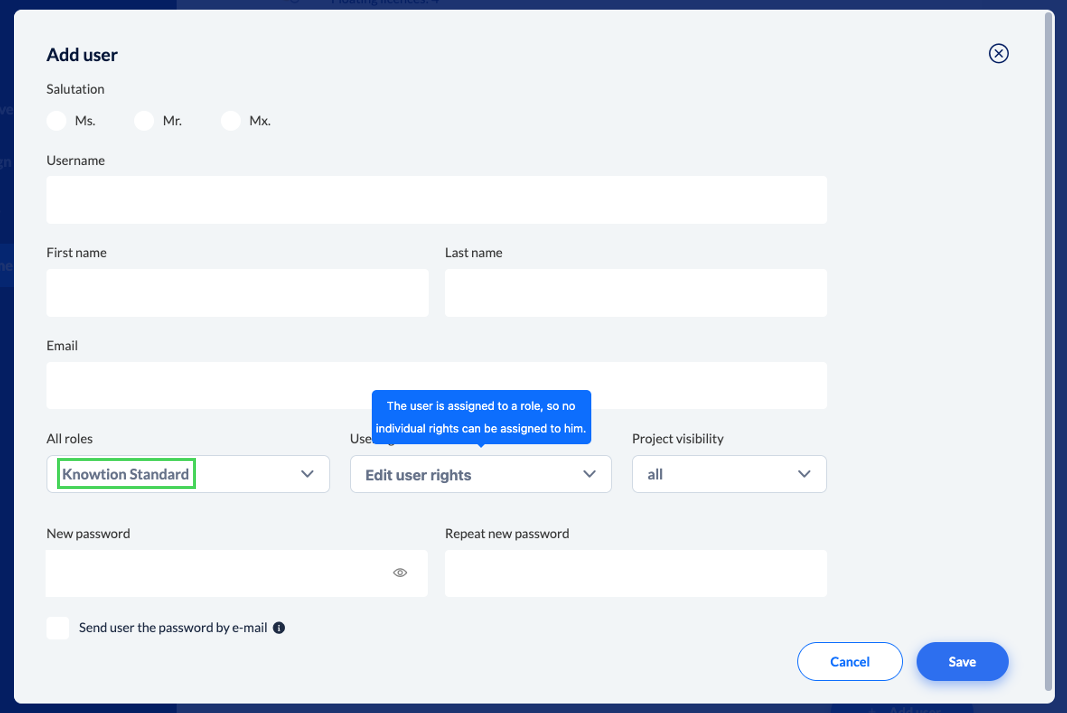
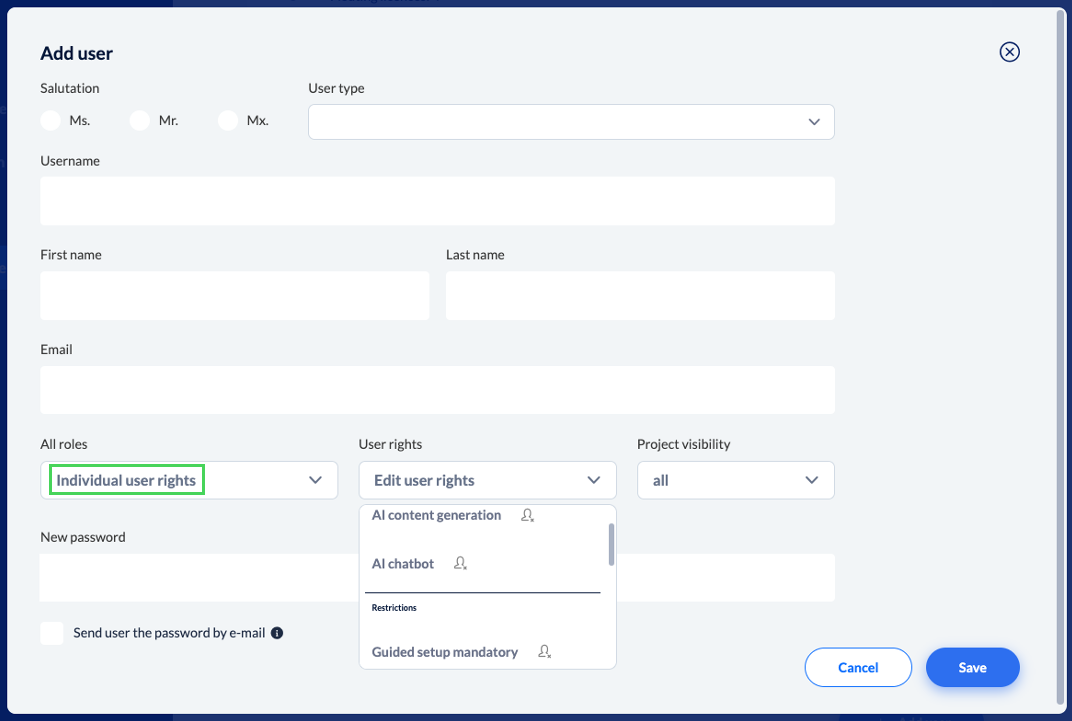
All roles: In this dropdown you will find all standard roles of youknow as well as the roles that you have created yourself (see the extra article on roles - linked at the end of this article). Certain rights are already stored for the Admin, Reviewer and Knowtion Standard roles. If you select the ‘Individual rights’ role, you can compile the user's rights yourself.
User rights: This drop-down menu can only be edited if you have selected ‘Individual rights’ for the role. You can then customise the desired rights for the role here.
Project visibility: You have the option of choosing whether a user sees all projects or only the ones they have created.
Password: Your password must be at least 8 characters long and contain upper case letters, lower case letters, numbers and special characters.
Here you can see that selecting the ‘Knowtion Standard’ role means that you cannot assign any individual rights. This role has already defined certain rights:
When selecting ‘Individual user rights’, you can manually select the desired rights for the user you are currently creating:
Delete or change user
You can delete the respective user via the icon with the rubbish bin directly next to the pen.
You can use the pencil icon in the user list to change the user's rights, email address, name or password. Only the user name can no longer be changed.
When changing a user, you have the same options - apart from the user name - as when creating a user. You can therefore adjust all rights, change data or even change the role.
IMPORTANT: In principle, you can change any user to a Reviewer role. But you can NOT switch back from the Reviewer role to another role. So: ‘Once a reviewer, always a reviewer’
How can I create my own roles?
Mit Rollen arbeiten
Wie kann ich Rollen anlegen, bearbeiten oder löschen?