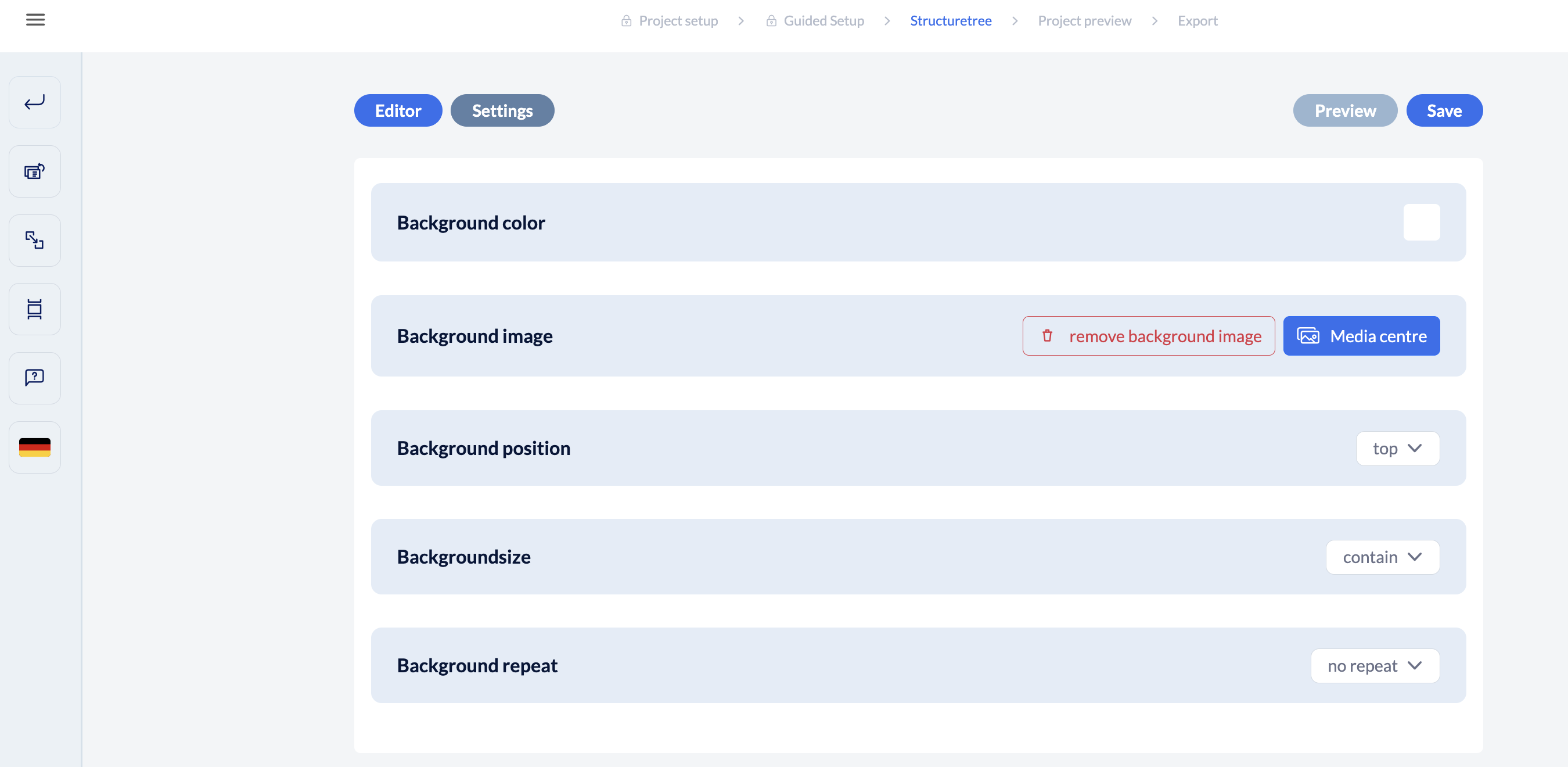
How about a page that stands out from all the others?
Simply add an image as a background or choose a different color. Here's how:
Change background color
Open a page in the structure tree to access the page editor.
Click on the “Settings” button in the top left corner.
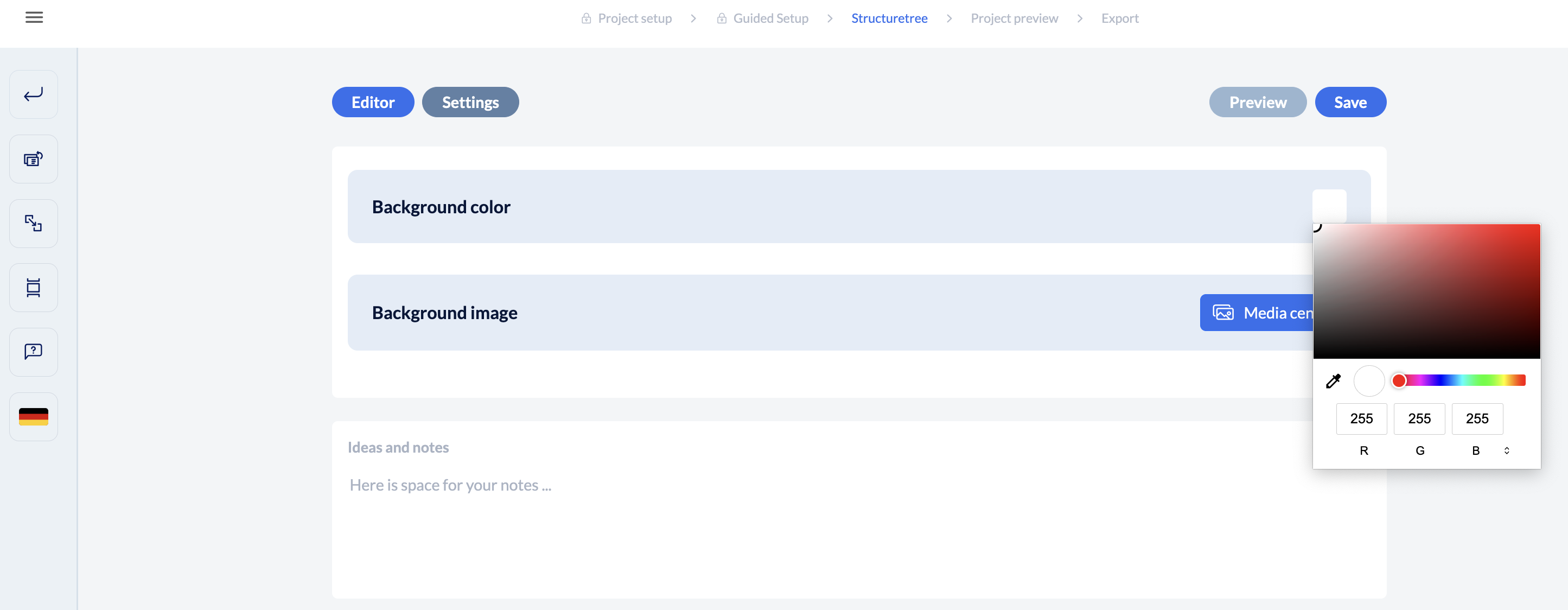
Now select the desired color. You can choose between RGB, HSL, or HEX for the input
Take a look at the result: Use the “Editor” button in the top left corner to return to the page view or the “Preview” button in the top right corner to go directly to the page preview.
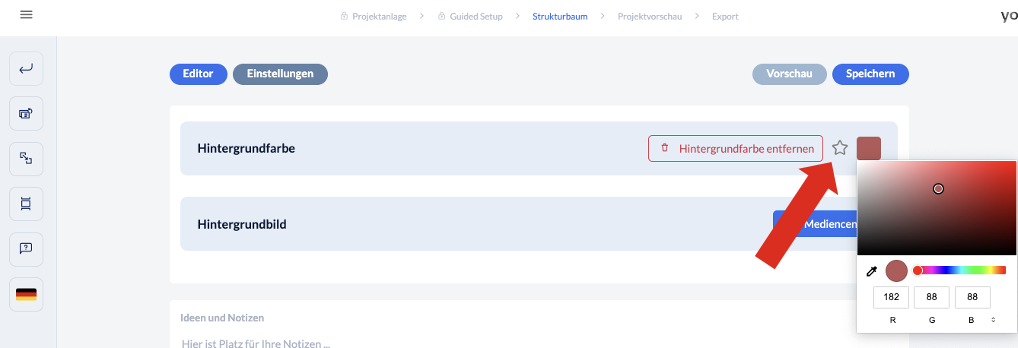
Use a favorite color
In order to use a color that you put in your favorites, click on the star and choose the color.

Insert background image
Open a page in the structure tree to access the page editor.
Click on the “Settings” button in the top left corner.
Now select the desired image from the media center under “Background image” – or upload one directly there.
You can then adjust various settings for the image, such as
Positioning = where should the image be placed when it is displayed full screen and fitted to size?
Size = should the image be displayed fitted to size – i.e. at full height – or scaled so that it always fills the entire screen (in which case some areas may be cropped in height or width)?
Repetition = to fill the entire screen, the image can also be displayed repeatedly.
Take a look at the result: Switch back to the page view using the “Editor” button at the top left or go directly to the page preview using the “Preview” button at the top right.