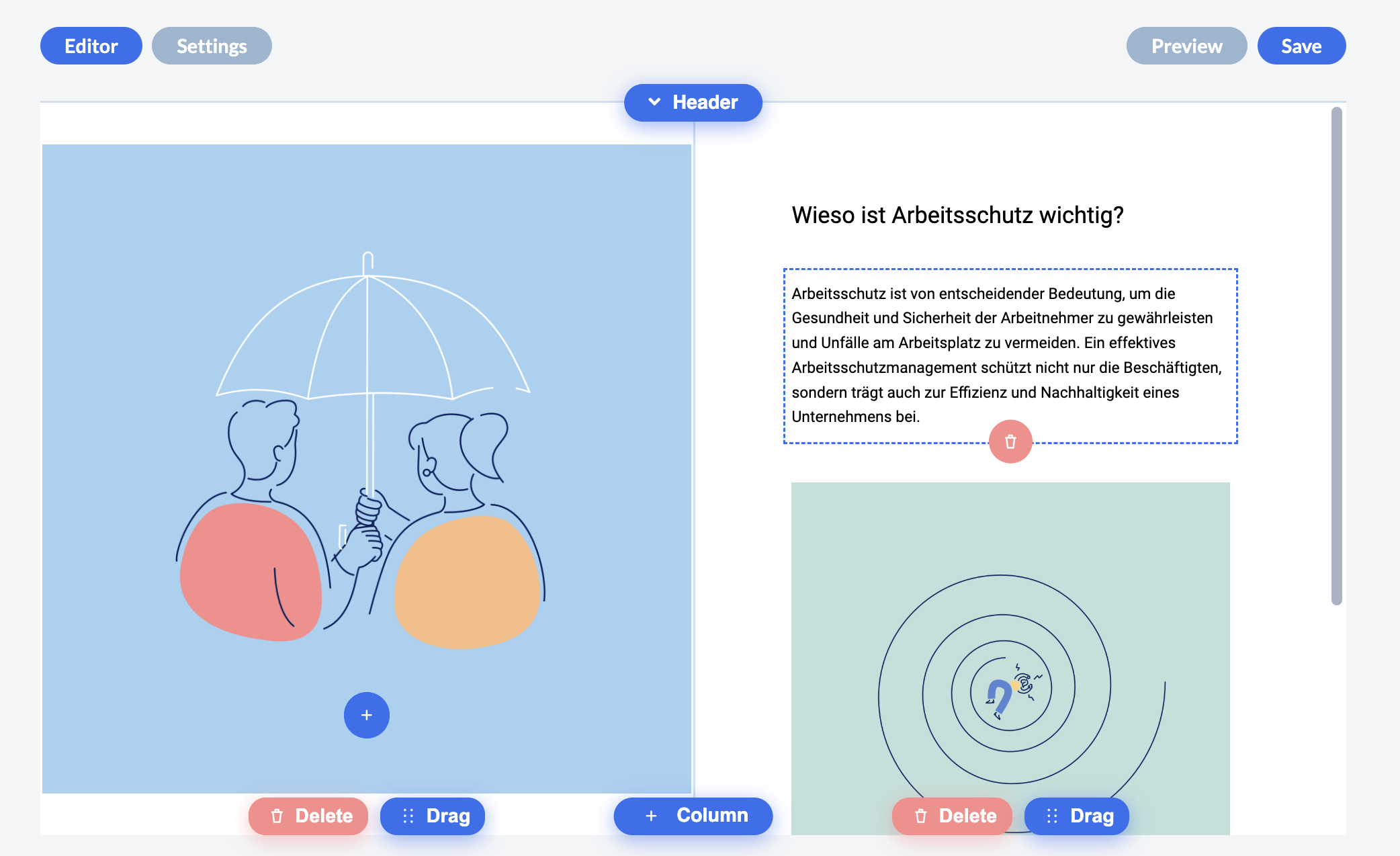
Are the various predefined page types not enough for you? Would you like to combine an image with text and a flip card yourself, for example?
Then the freely designable page is just right for you.
How exactly do you proceed?
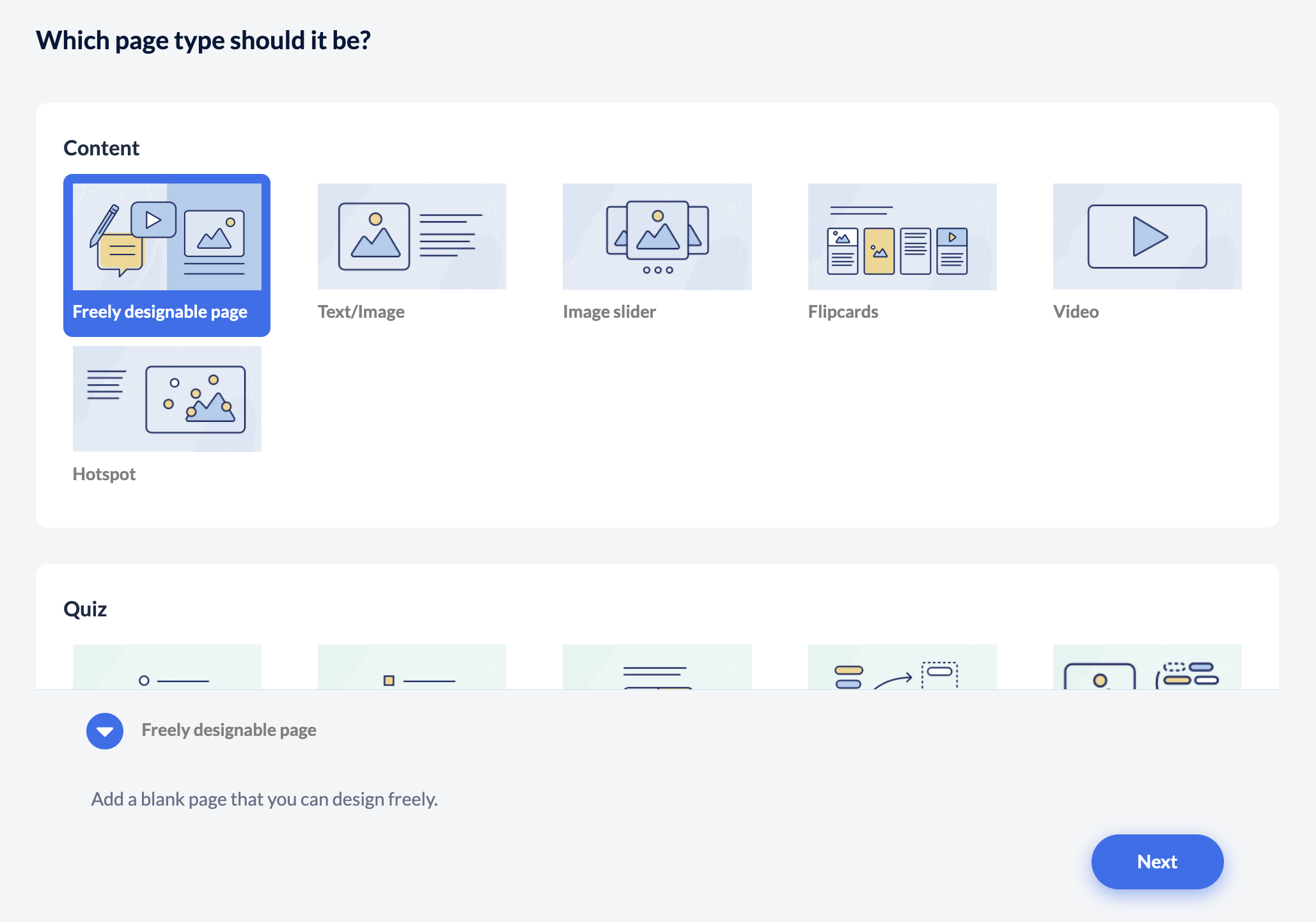
Create a new page in the structure tree and click on “Select page type.”
Then select “Freely designable page” here.
Design your own page
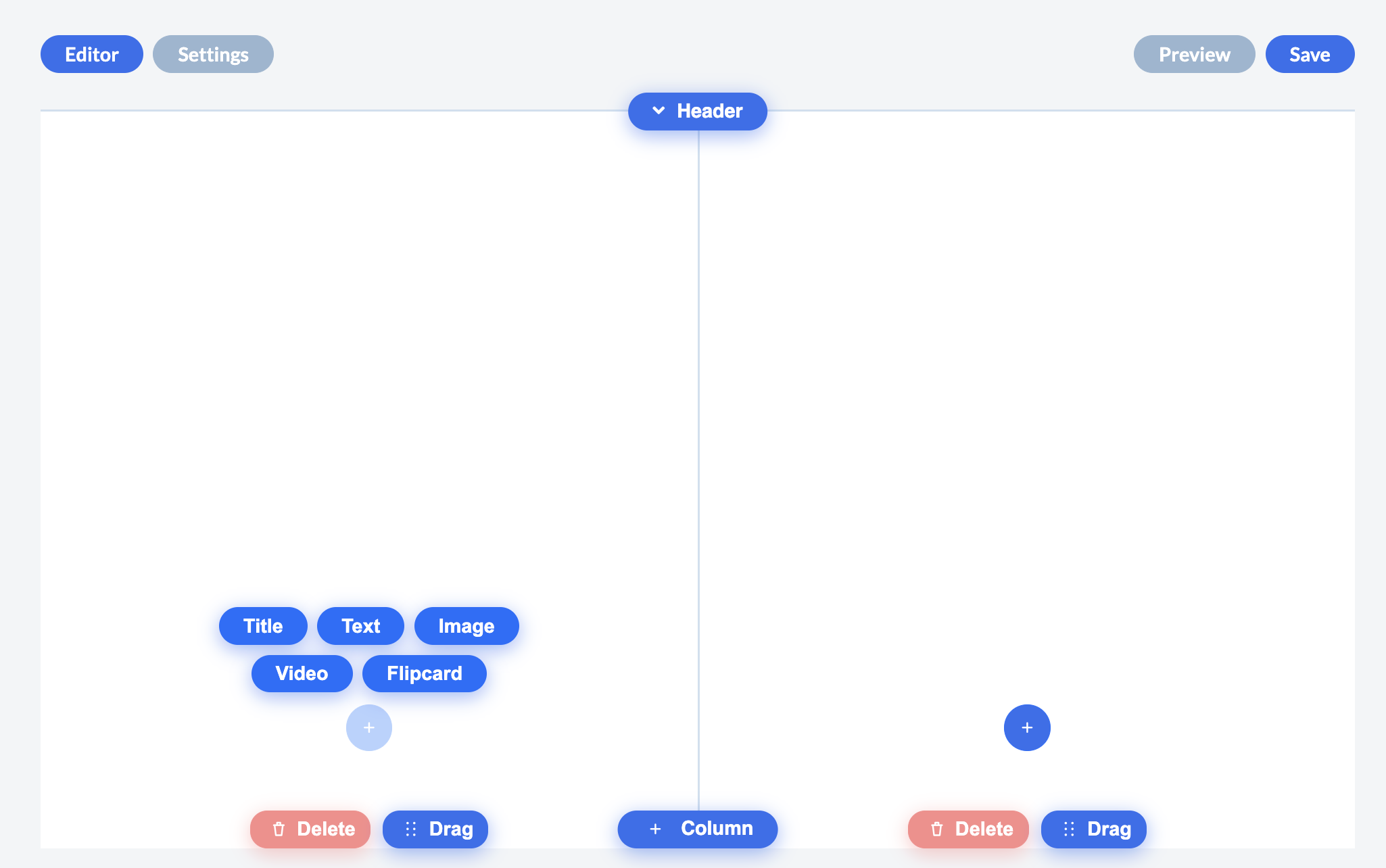
You can add or hide a header using the button at the top.
Add another column using the button “+ Column” at the bottom (maximum of three columns possible).
You can insert up to 5 elements per column: title, text, image, video, flipcard.
IMPORTANT: Videos and flipcards can only be used ONCE per column.
How to edit the page
Once the page has been designed, you can edit it:
Move elements using drag and drop: Elements can be moved within a column and across columns – simply click and drag. However, the rules still apply: a maximum of 5 elements AND a maximum of one video or flipcard per column. This means that you cannot move a flipcard into a column that already contains a flipcard, or into a column that already contains 5 elements.
Delete elements: To delete an element, first finish editing it by clicking outside of it. Once no elements are being edited, a small red trash can icon will appear at the bottom of each element when you hover over them (you can see the icon on the bottom of the text field in the screenshot below). Use the trash can icon to easily remove the element.
Delete or move column: To delete the column, simply click on the “Delete” button at the bottom of the column. To change the order of the column rows, hold down the “Drag” button and move the column to the desired location.