How do I embed external videos without uploading them?
Step-by-step instructions for embedding videos from other platforms such as YouTube
The short answer is: You can easily insert videos into knowtion using an embed link without having to upload them there.
Three actions are required for embedding (more information on these actions is provided later in this article):
Action 1: Create a text-image page OR a customizable page and create an iframe
Action 2: Copy the embed link
Action 3: Paste the embed link into the iframe you just created
Action 1 – in the knowtion project
Create a text/image page and select the “Text Only” page layout.

Enter a space in the header.
Copy the following code:
<iframe title="desired title" style="position:absolute;top:0;left:0;width:100%;height:100%" src="https://www.youtube.com/embed/_fYUaTA9dTI?si=IJqkcTtjM0LlW-KT"></iframe>

Note: Simply “copying and pasting” also transfers text formatting, which can cause display errors or trigger the error message “It’s pretty tight in here….”
The code must therefore be pasted using the “Paste as Text” option.
This can be done using the shortcuts “Ctrl+Shift+V” (Windows) or Cmd+Shift+V (Mac), or by right-clicking and selecting the paste options.
The code must therefore be pasted using the “Paste as Text” option.
This can be done using the shortcuts “Ctrl+Shift+V” (Windows) or Cmd+Shift+V (Mac), or by right-clicking and selecting the paste options.
Save page.
Action 2 – On the source platform
Copy the embed link for the desired video from the source platform.
Here's how to do it on YouTube:
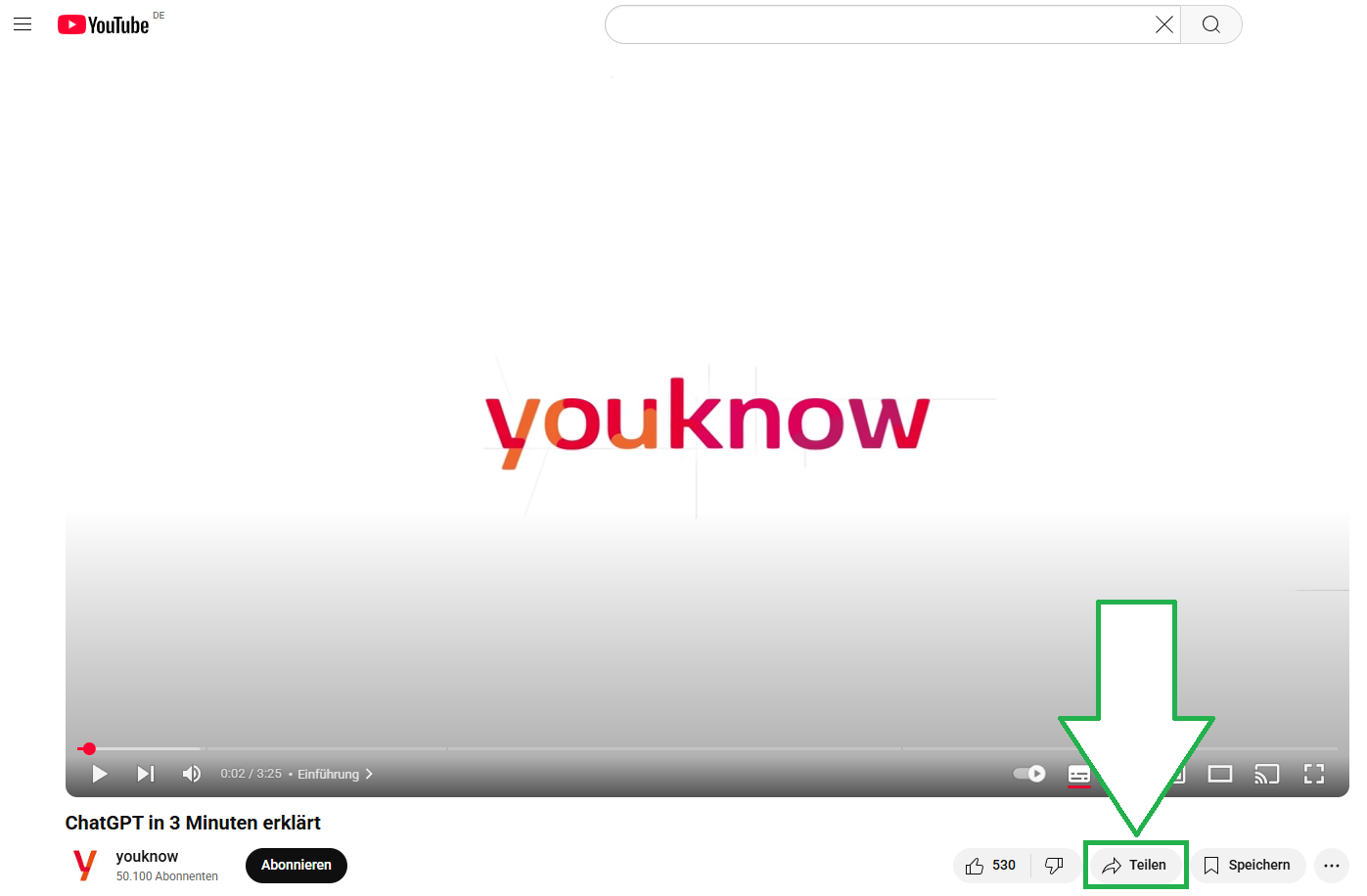
Click the “Share” button below the target video.
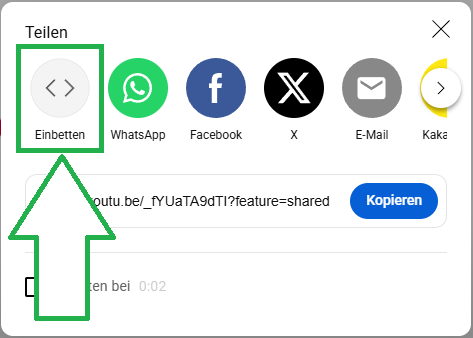
Click on “Embed”...
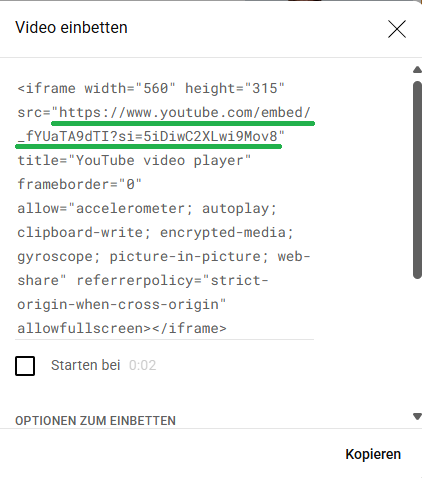
... opens the “embedded code.” In this code, the URL after “src=” is relevant.
… if you want the video to start at a specific time (for example, at 15 seconds in the image below), this information must also be included. It is therefore important that the entire text within the quotation marks after “src=” is included.
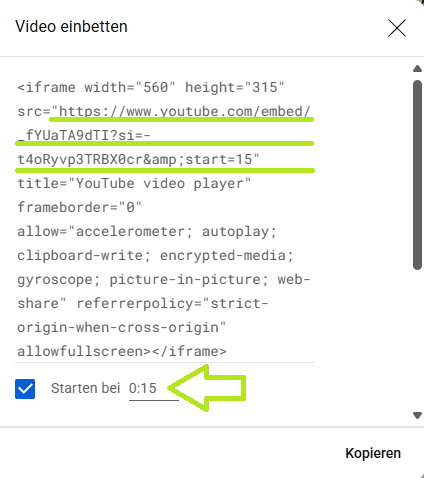
Copy the line and return to knowtion.
Action 3 – in the knowtion project
The link after “src=” in our text field is replaced by the target link you just copied. (Again, make sure to select the “text only” option.)
 Here, too, we recommend using the “Text Only” option when pasting.
The desired title of the video is specified after “title=”.
Save page!
In the page and project previews, as well as in the exported project, the embedded video is displayed full-screen and can be started by clicking on it.
Embedding on a Freely Designable Page
If you have chosen the freely designable page, please use the following link for the iframe in knowtion in a text field in Action 1 (WITHOUT a header):
<iframe title="Desired Title" style="position:absolute;top:0;left:0;width:100%;height:100%" src="https://www.youtube.com/embed/_fYUaTA9dTI?si=IJqkcTtjM0LlW-KT"></iframe>
WITH a header, use this version:
<iframe title="Desired Title" style="position:absolute;top:0;left:0;width:100%;height:80%" src="https://www.youtube.com/embed/_fYUaTA9dTI?si=IJqkcTtjM0LlW-KT"></iframe>