Using "roles"
How can I create, edit or delete roles?
What exactly is a role and what roles are there?
A role is a set of rights - a kind of ‘rights profile’. You can find the roles in the usermanagement at the top next to the word ‘Users’ by clicking on ‘Roles’.
There are three roles that we have already created:
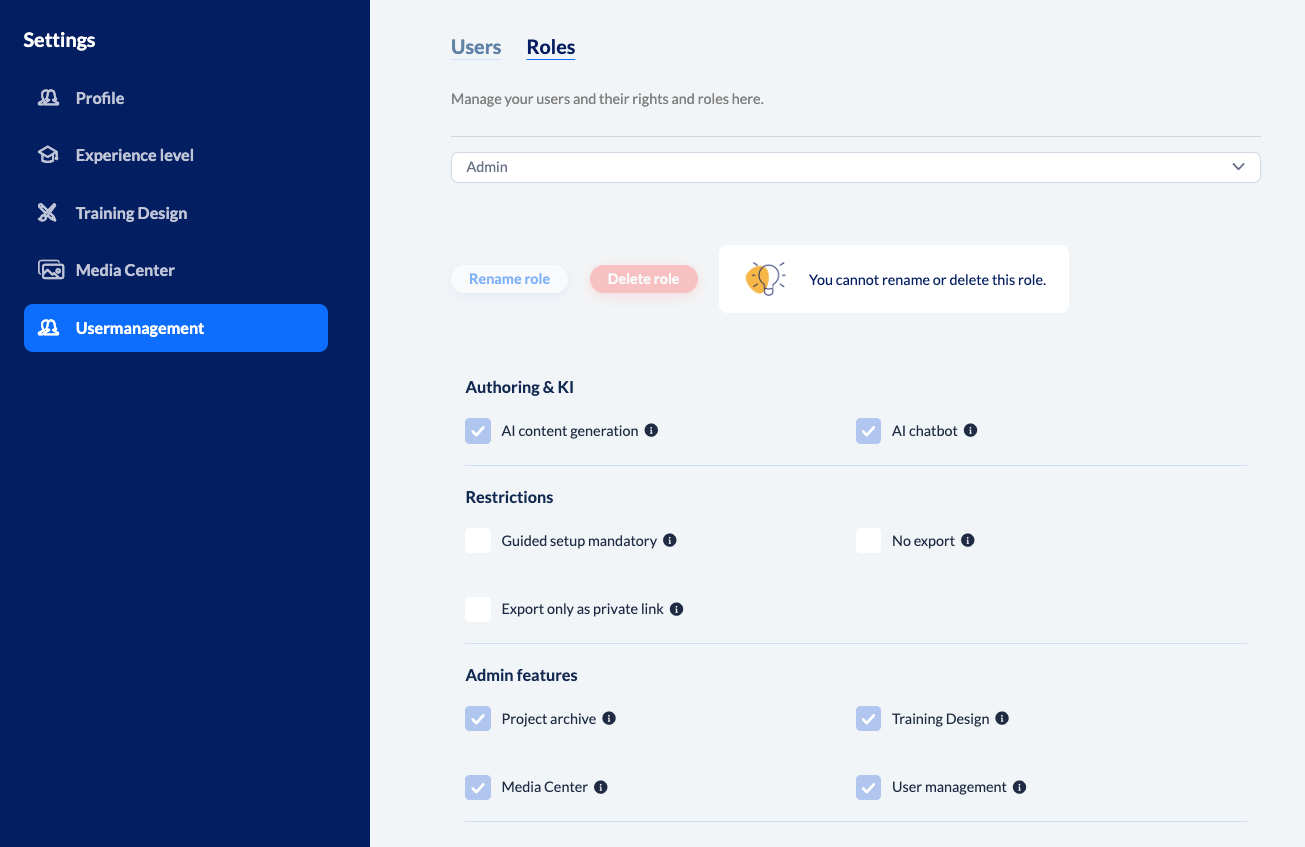
Admin: By default, the admin has the right to use AI for content generation and the AI chatbot. They also have access to the project archive, the global media centre, the training designer and the user administration.
knowtion Standard: The ‘normal’ knowtion Standard user has the right to generate content using AI.
Reviewer: As a pure reviewer user, you have no authoring rights. If a reviewer logs in and then clicks on one of the projects, they will see the project preview with the option to add comments on the left. Would you like to know exactly what this looks like? Please click here:
Review mode from the reviewer's point of view
How does the review mode work for users with a reviewer-role?
Individual user rights: This role is not actually a role at all, but the selection you need to customise the individuel rights for the respective user - as the name suggests.
Here is an example of the distribution of rights for the standard ‘Admin’ user:
When does it make sense to work with roles?
If users should always be given the same rights, e.g. the AI right for content generation + the restriction of only being able to export direct links (but no SCORM packages) - and always in this combination, then it makes sense to create a new role for this purpose, which is assigned precisely these two rights or restrictions.
How do I create a new role?
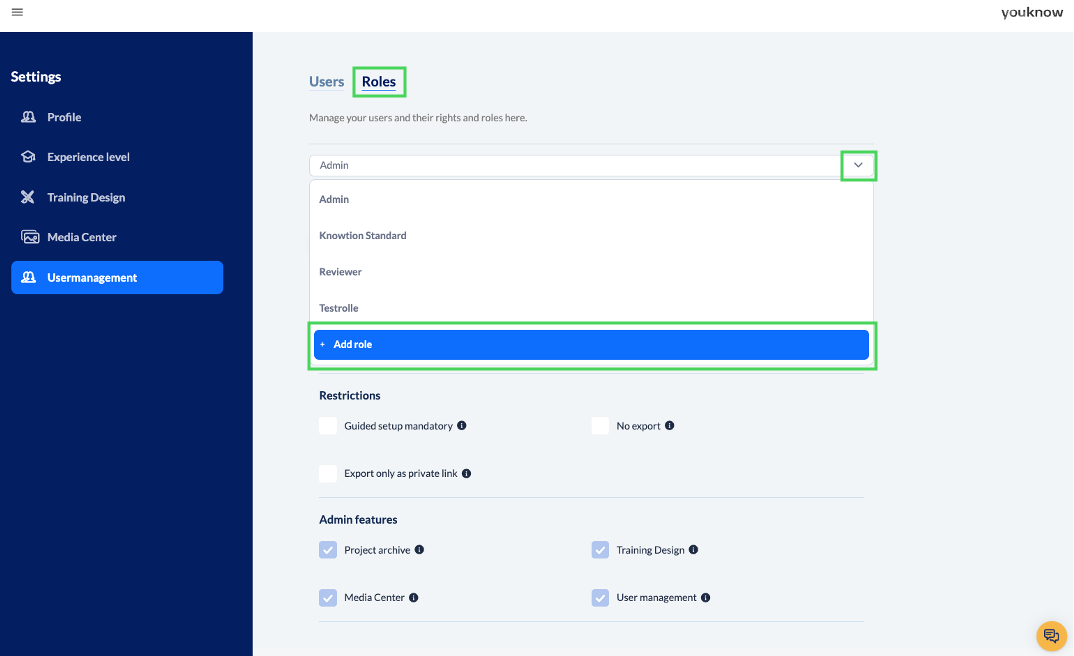
To create a new role, click on ‘Add role’ in the drop-down menu under Usermanagement -> Roles
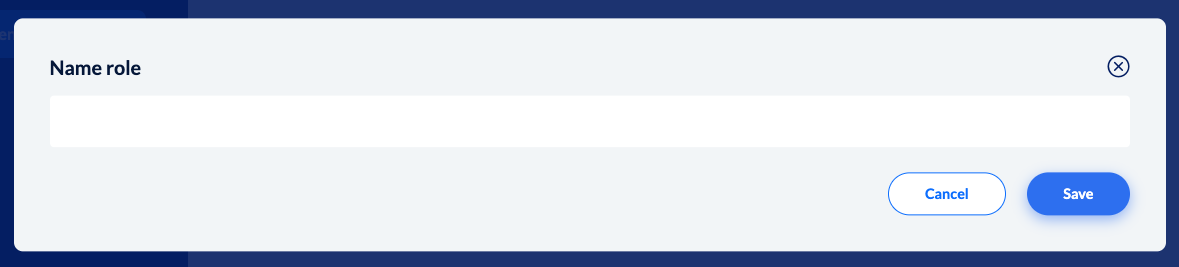
Name the role.
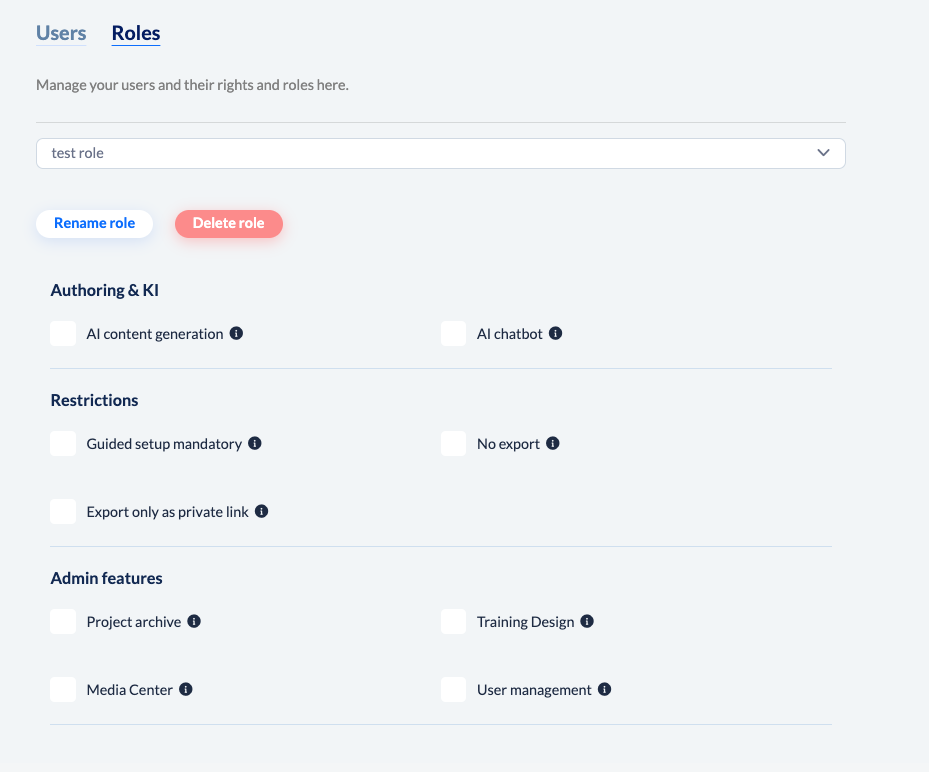
And then select the desired rights or restrictions.
Can I edit or delete roles?
You can edit roles at any time. Simply select the relevant role and select other rights/restrictions or give the role a different name by clicking on the ‘Rename role’ button.
If you want to know what a right or restriction means, just hover over the little “i” and you’ll get a short explanation.
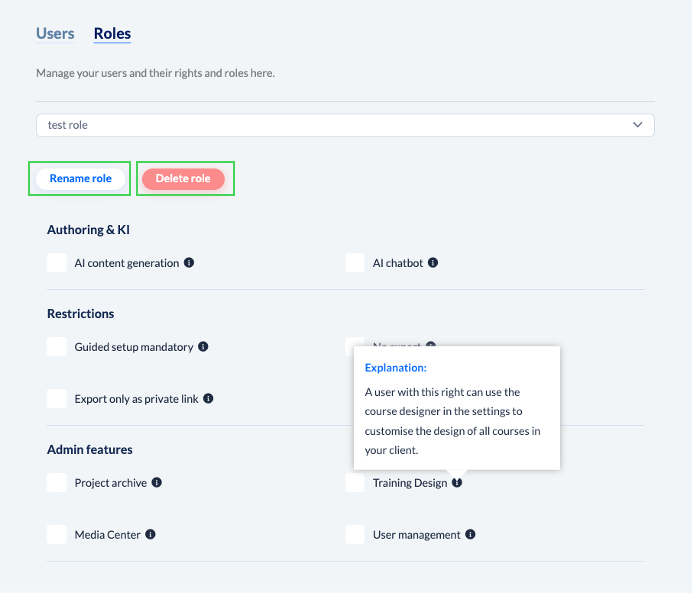
You can also delete all self-created roles using the red button.

Important: The rights of the ‘Reviewer’ role cannot be changed. In addition, the standard youknow roles can neither be renamed nor deleted.
However, the rights for the ‘Admin’ and ‘Knowtion Standard’ roles can be changed.
However, the rights for the ‘Admin’ and ‘Knowtion Standard’ roles can be changed.