Getting started in knowtion
New to knowtion? Learn about the most important steps in this introduction
Welcome to knowtion – the authoring tool that supports you in creating your online training.
To get started as quickly as possible, take 10 minutes to read through the most important first steps here. After that, you'll be able to easily navigate knowtion on your own.
And if you have any questions – feel free to search for answers here in the help center or contact us directly via the small bubble at the bottom right in knowtion.
Why knowtion?
What do you gain by creating your training with knowtion? What sets knowtion apart from other authoring tools?
Here are four compelling arguments for how knowtion best supports you in training creation:
Several different topic templates – that means standard content that you can customize yourself
Without any prior knowledge, you can create e-learning in just a few minutes – this quickstart helps you, but even without it, knowtion is straightforward and intuitive to use
Content creation at the push of a button – with the help of AI (you'll see how exactly that works further down)
Automatic translation with the help of AI – you only need to do the fine-tuning
The Starting page
When you log into knowtion, you are taken directly to the starting page where you get an overview of all projects created in knowtion, the so-called "project list". You can return here at any time via the main menu – the three horizontal lines – at the top left. The main menu also leads you to our “knowledge store” with many tips on training creation, or you can change your password, for example, via the "settings". More information about the starting page can be found here.
Allgemein
Grundlegende Informationen zum Aufbau der Startseite
Let's get started! Create your first project
You're almost there: Just one more minute and you can click the big prominent "Create New Project" button on the starting page!
Before that, here's a quick mini-overview of the three possible ways to create your training:
Creating a training with "Topic Templates" – topic templates are completely ready trainings created by us on general topics like data protection or compliance, which you can fully customize.
Individual creation, completely free – this means you proceed to a blank editor and can build the training from scratch yourself.
Guided individual creation – our "Guided Setup" asks you questions and on the basis of your answers comes up with a structure for your training.

The guided path (Option 3) allows you to generate content automatically using AI, so that your training program—including text and images—is created entirely for you.
Now, click the button "Create new project" and let's go!
New project with topic templates
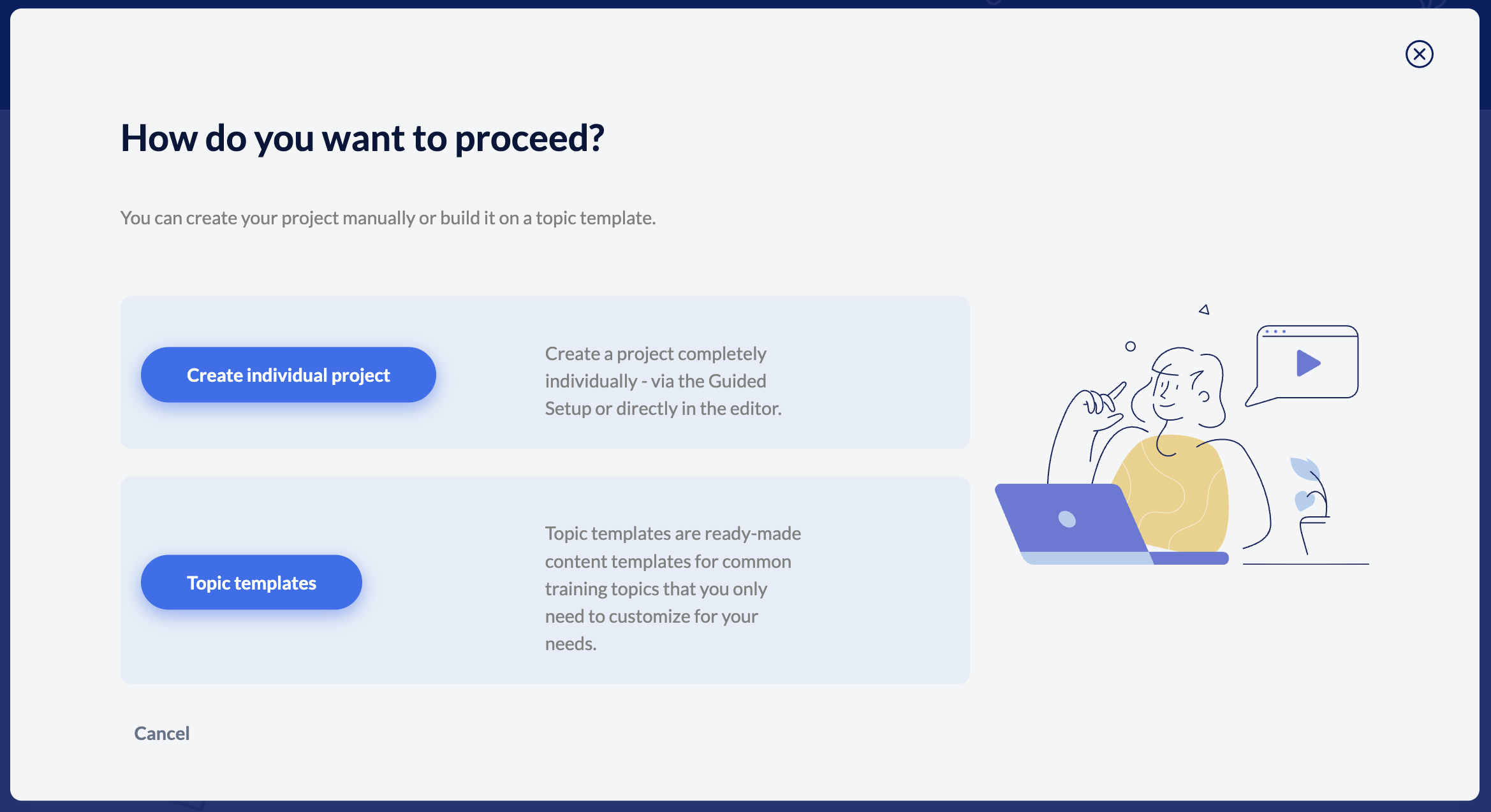
If you choose the path with the topic templates, simply select the appropriate template (data protection, diversity etc...), then proceed to a brief structure tree overview, and then you're guided directly to the editor or the structure tree. The structure tree is essentially your "workspace." Here you can now edit all the pages we have created according to your wishes.
"How do I edit an existing page?", you ask? You can find more information, for example:
Bearbeiten von bestehenden Seiten
Informationen zum Bearbeiten
New Project via Guided Setup
Do you want to take the path of our Guided Setup because you might even want to have your project created completely automatically via AI? Perfect.
To access the Guided Setup, select "Create individual project" in the first popup (see screenshot above). Now you can set a project title, among other things. You can change this later in the structure tree, just like the decision if you want to add a final test – so feel free to just go ahead.
After these first steps the actual Guided Setup starts.
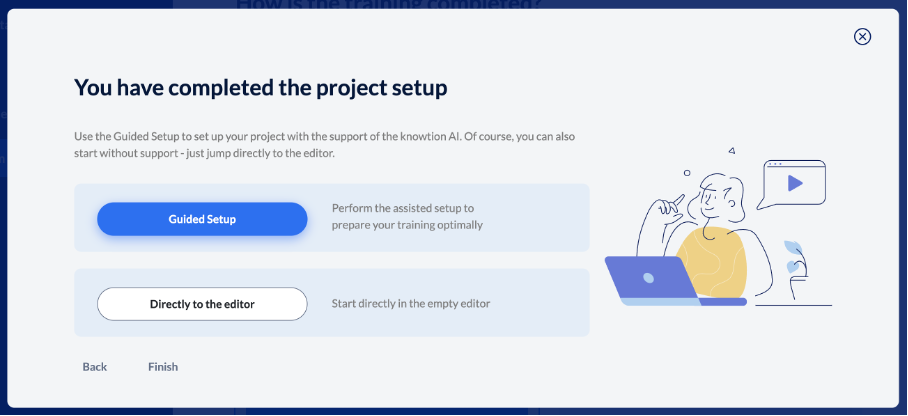
Knowtion guides you step by step through questions about your training project. Specifically, it involves questions about content, the target group of your training, and the learning goals. You have the option to create the learning goals using AI and then edit them yourself.
IMPORTANT: Only if you create the learning goals with AI can you later have the content completely generated by AI.
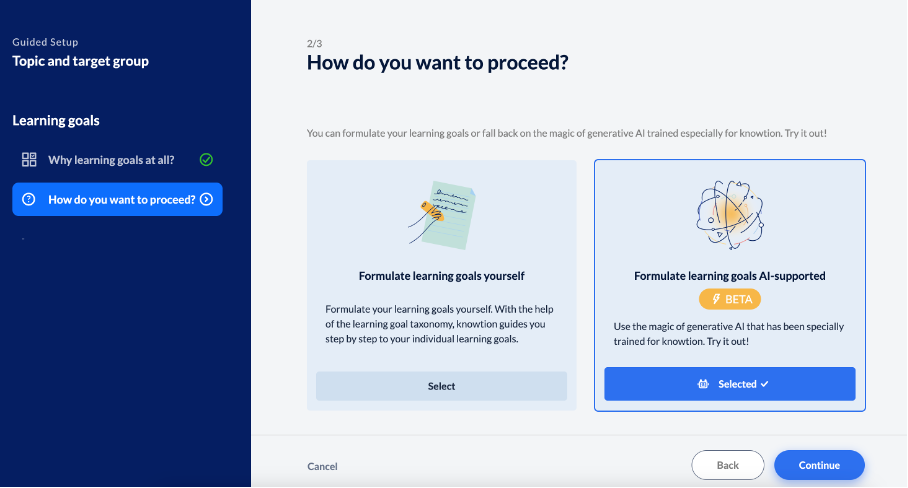
Creating learning goals via AI with existing material? That is of course possible. Simply select the appropriate option and upload the desired content. Knowtion extracts all texts from the materials (images cannot yet be extracted - as of 11/2024) and also displays them in the text field.
Your learning goals are ready? Then you can choose between creating a pure training structure through knowtion or having the page content with texts and images generated by AI in addition to the structure. (The second option is only possible if you have created the learning goals via AI.)
Knowtion creates a training structure for you: What exactly does that mean?
In the structure tree – your "workspace" in knowtion, so to speak – you can create training pages and fill them with content. If you chose our Guided Setup, you will find "placeholder" pages in your workspace already created by knowtion with titles like "Build basic knowledge" or "Create acceptance." This means the pages are empty, but knowtion tells you how to fill them and thus already provides the training structure.
Automatic content generation via AI
Placeholder pages are not enough for you? No problem! Then have your training completely created with AI-generated content. After the learning objectives, all it takes is a small check in this popup:
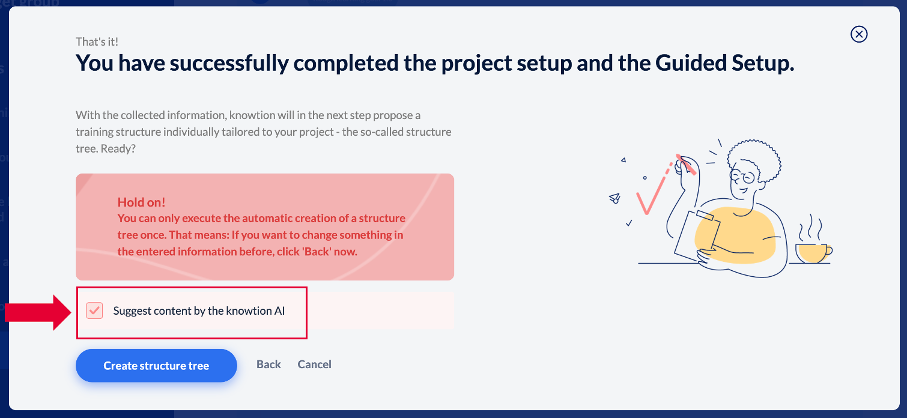
Afterwards, knowtion creates three story ideas for you: Creative, factual, and a mix of both.
Subsequently, all pages of your training are generated, and you can focus entirely on fine-tuning.
Good to know
You want to know more about how knowtion supports you with AI in further training creation in the structure tree, for example in the text editor or by automatically creating quizzes? This way then, please.
Writing text with knowtion support
How to use the AI feature in the text editor
Automatic creation of quizzes
Let the AI create a quiz for you
Text-to-Speech Function
Let an AI voice speak your text
Translate texts automatically
knowtion offers you the possibility to create ready-made language versions with the help of AI