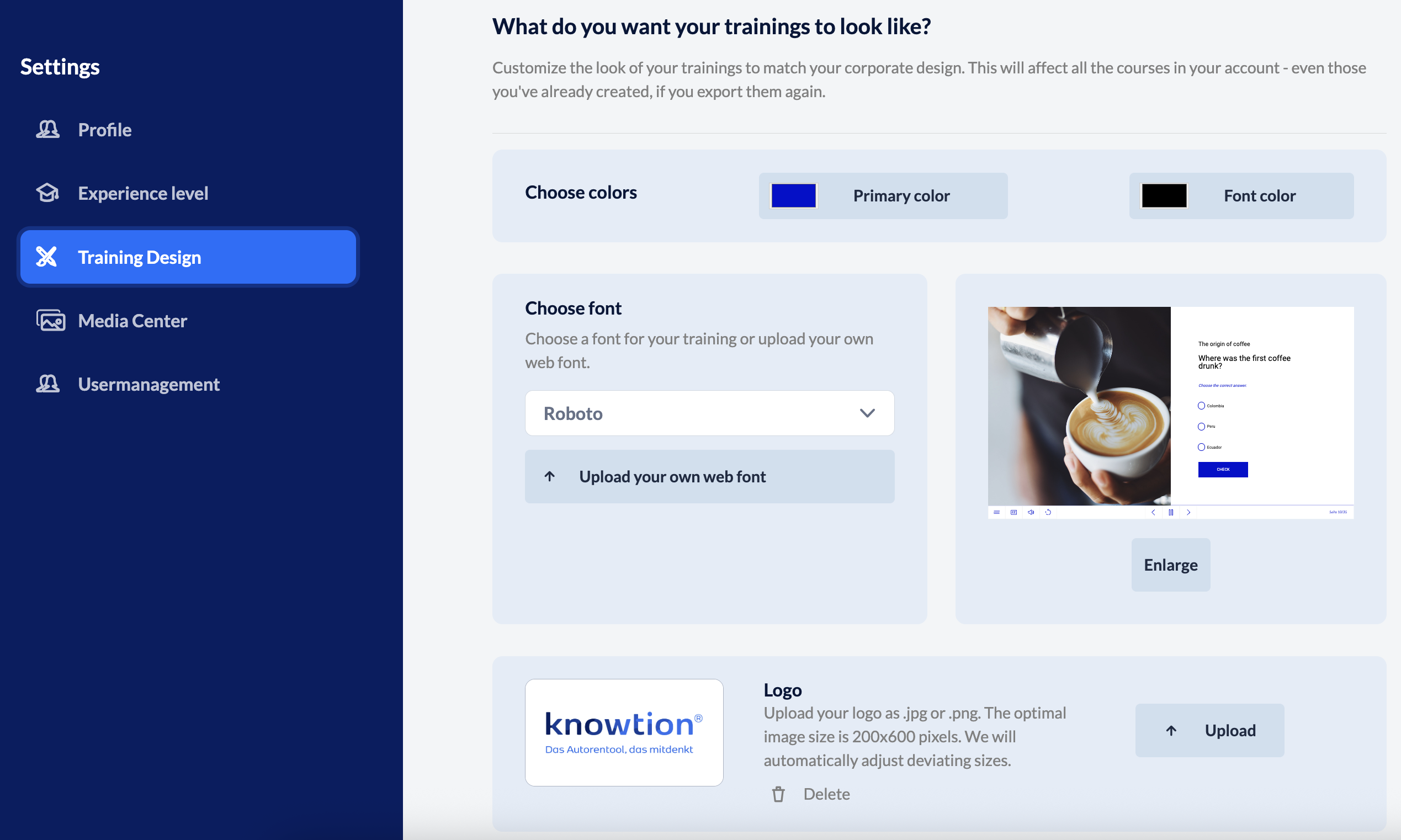
knowtion offers you multiple page types in the structure tree that you can use for your training courses. Extensive UX/UI expertise has been incorporated in their design so you can concentrate fully on developing your content. The design options you have, you’ll find here in the Training Design area where you can customise the basic project layout according to your corporate design with just a few clicks. Select the primary colour of your company, choose a suitable font (or upload your own – if it’s a web font) and upload your logo.
Please note that customisations in the Training Designer affect all your projects created in knowtion. For example, if you change the font, the texts in all the projects you have created will appear in the new font. This does not apply to projects that have already been exported. Here, the design elements remain unchanged.
Colours
Select the colour model according to your company’s corporate design.
You can also select the primary font colour for all training courses. You can, of course, adjust the text colours again later in the project itself.
Font
Define the font for the texts in your projects. To do this, select a font from the drop-down menu. Alternatively, you can also upload your font.
Which font can be used? The font you upload has to be a web font (WOFF) so that it is displayed on the corresponding end devices on the web without installation.
Upload Logo
Upload your company's logo as a JPEG or PNG file.
Where can I find my logo in my project? Within your projects, the logo will appear on the start page, in the main menu and in the table of contents.
Good to know: If you don’t add neither a start page, nor a main menu and you don’t allow your learners to view the table of content, your logo won’t appear in the project.
Preview
In the Training Designer preview, you can see how your design customisations will affect your projects.