Review mode from the reviewer's point of view
How does the review mode work for users with a reviewer-role?
Once you have logged in with your review access, you will land in the project list. Here you will find the following areas:
‘Open reviews’
‘Completed reviews’
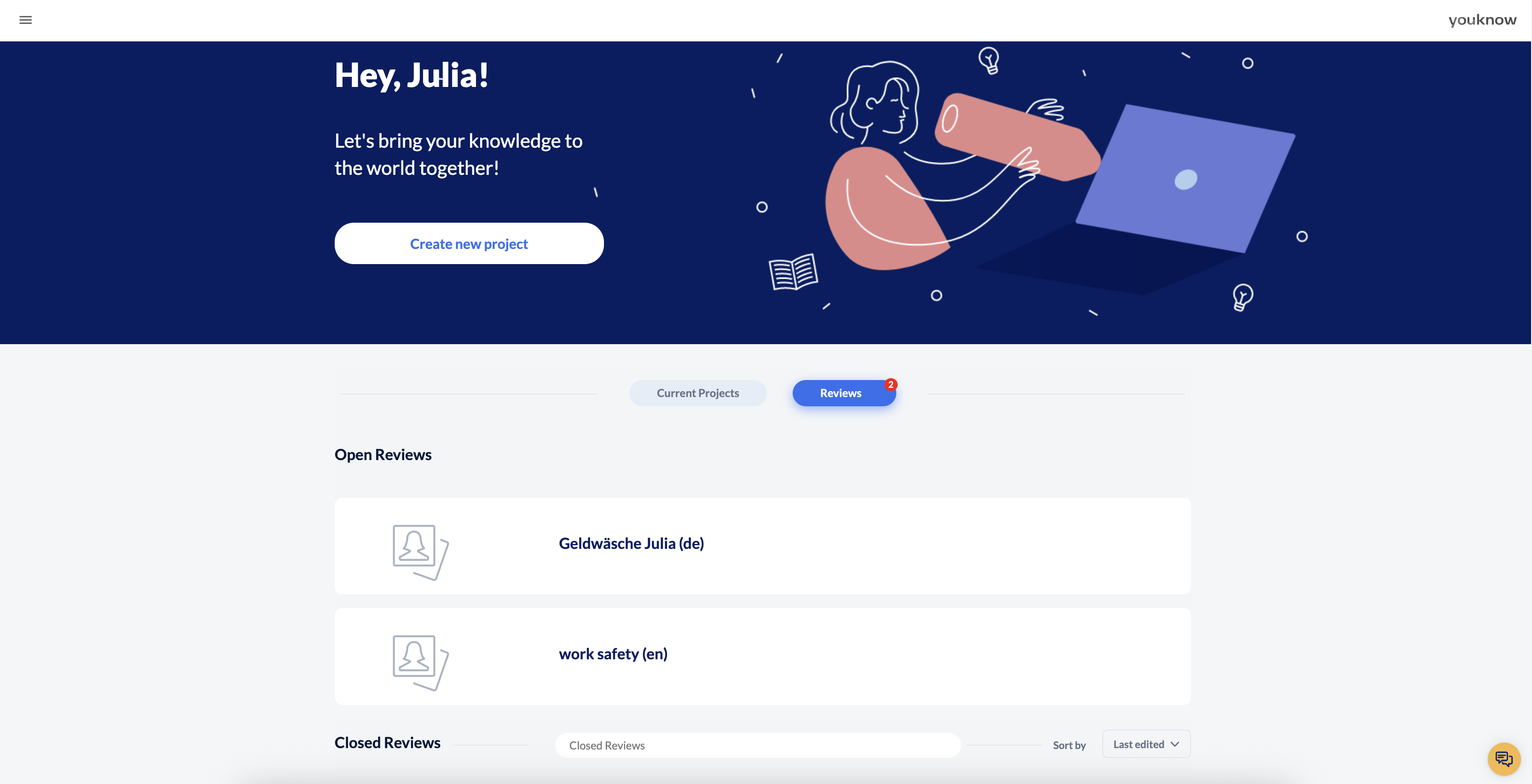
As a reviewer, you will be shown the projects in the language version for which you have been invited to review. The language of the project can be recognised by the respective abbreviation in brackets after the project title.
How do I start the project review?
To start the review, click on the project in the project list. You can now click through the project using the control bar at the bottom. Click on the comment button in the sidebar on the left to open the side menu.
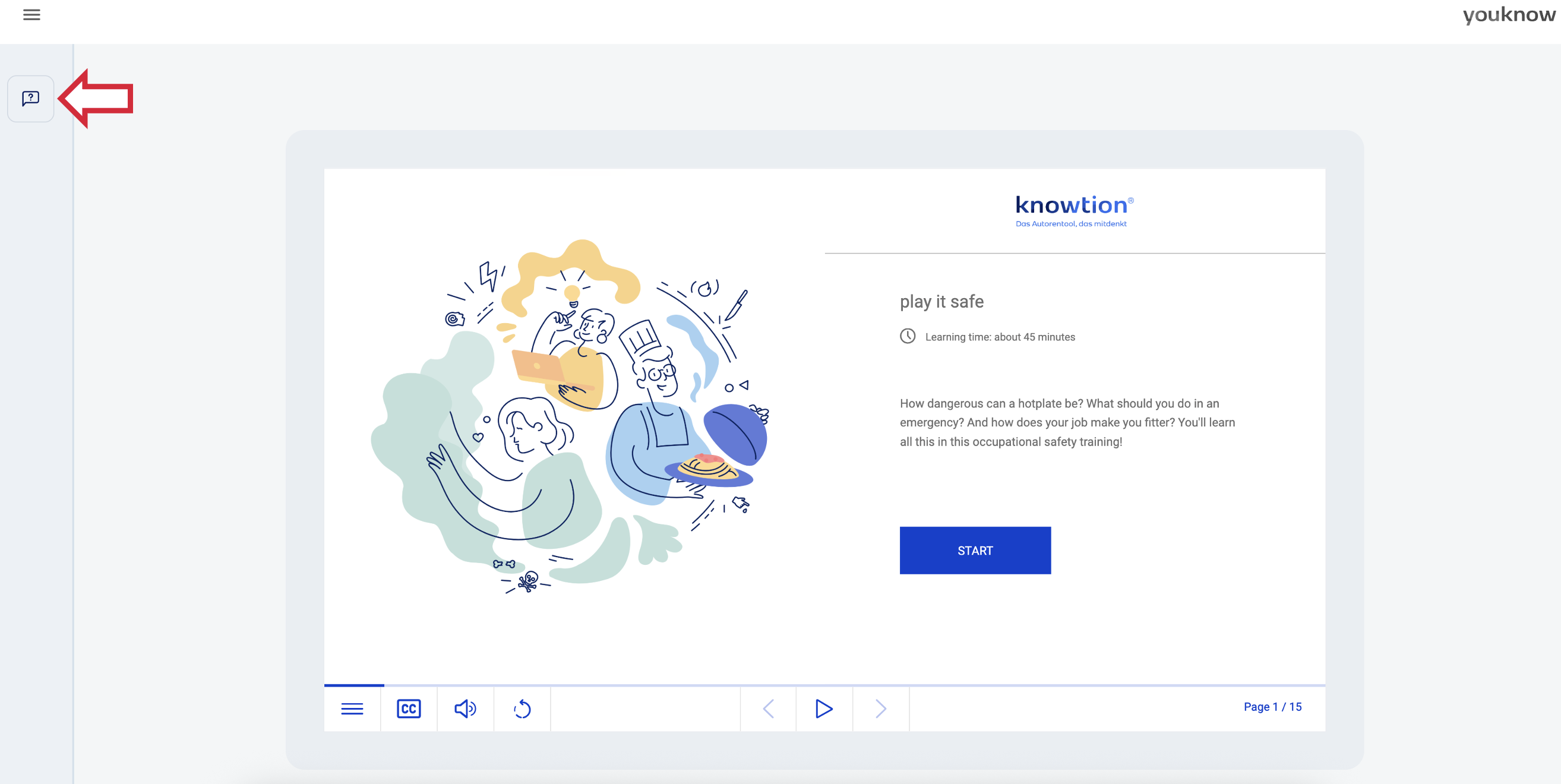
Options in the side menu
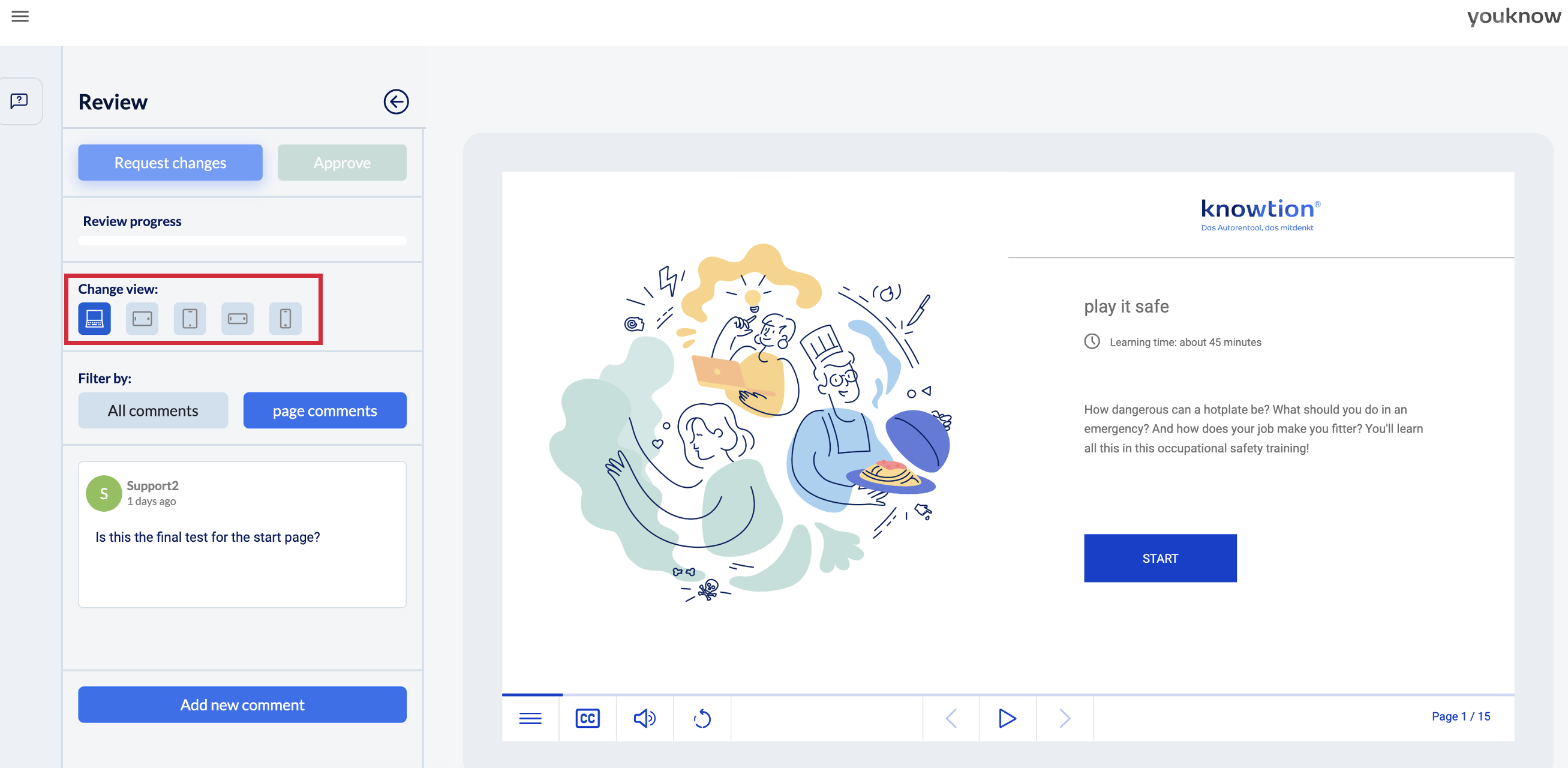
You will find various buttons in the side menu:
Request changes: As soon as you have incorporated all comments, use this button to request the changes from the authors.
Review progress: All existing comments (from you, the authors or other reviewers) in the project are counted in the review progress.
Change view (marked in the screenshot below): knowtion projects are responsive, which means you can use these buttons to view and test the project on different devices - whether tablet or smartphone (in portrait or landscape format).
Filter by: You can decide whether you would prefer to see all comments in the entire project or just per page.
The comments are displayed in chronological order - the most recent comment is at the top. You can also reverse this sorting by clicking Sort by ‘Newest / oldest’ again.
Add new comment: Add a new comment by clicking on the button.
Who can see my comments and can I delete them?
Your comment is visible to both the authors of the project and (any) other reviewers and is counted in the review progress.
You have the option of editing, deleting or ticking off your comment. The comments of others cannot be edited by you.
You can also reactivate your comments: If a comment has been ticked off by the author, but you think there is still room for improvement, you can remove the tick again.

Good to know: If you display all comments at once, you can jump directly to the relevant page by clicking on the comment.
I cannot navigate in the project
Testing the project includes testing the navigation. This means that the authors have specified in advance whether learners should be able to navigate freely in the training course or not - in this case, the navigation is restrictive. As a reviewer, you can test whether this works.
IMPORTANT: As soon as you jump to another page via a comment, you are taking a path that will not be available to learners later on. This may result in the navigation being blocked - because you are not officially allowed to jump to another page in the training. In such an exceptional case, you may have to navigate back or forward via the comments.
I have entered all the changes - what’s next?
The review process works as follows:
The authors request a review from you, i.e. the project appears on your homepage
You enter your comments - as soon as all your comments are in, you request your changes
The authors incorporate the changes and then ask you for your approval
You go through the same process again, enter your comments again OR if everything is correct now, click on the ‘Approve’ button. This moves the project in your project list from the ‘Open reviews’ to the ‘Completed reviews’ (see screenshot at the top).
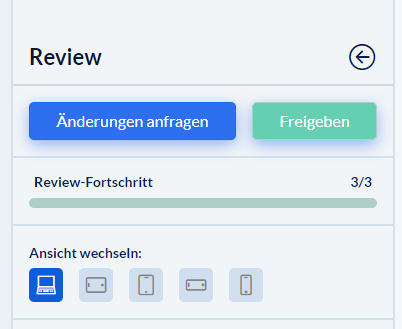
NOTE: As a reviewer, you can only click on ‘Approve’ when all comments have been processed or ticked off. Otherwise the button is greyed out.
Are you interested in the author view of the review mode? Then click here:
Review Mode from the author's point of view
How does the review mode work for authors?