Review Mode from the author's point of view
How does the review mode work for authors?
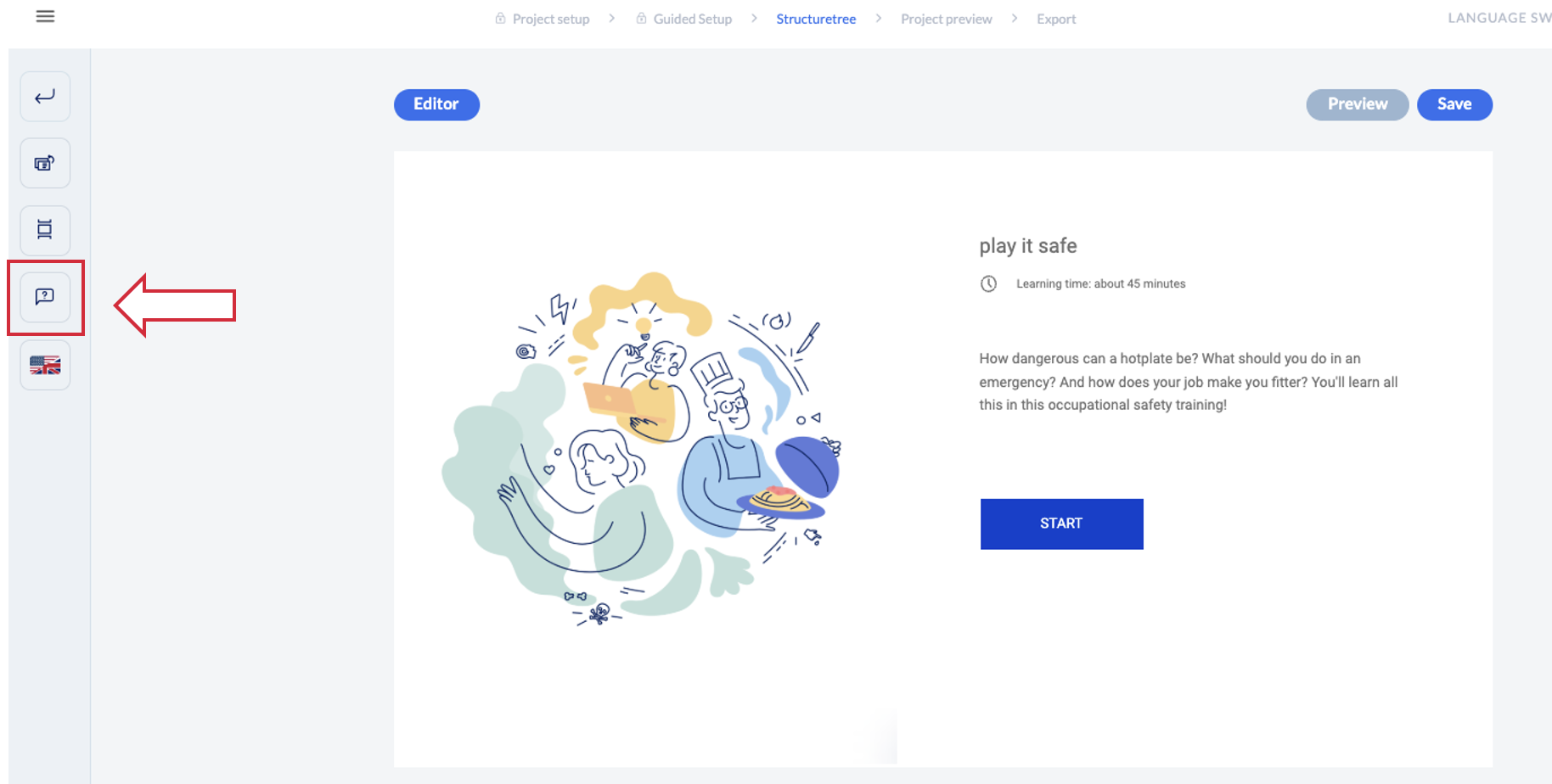
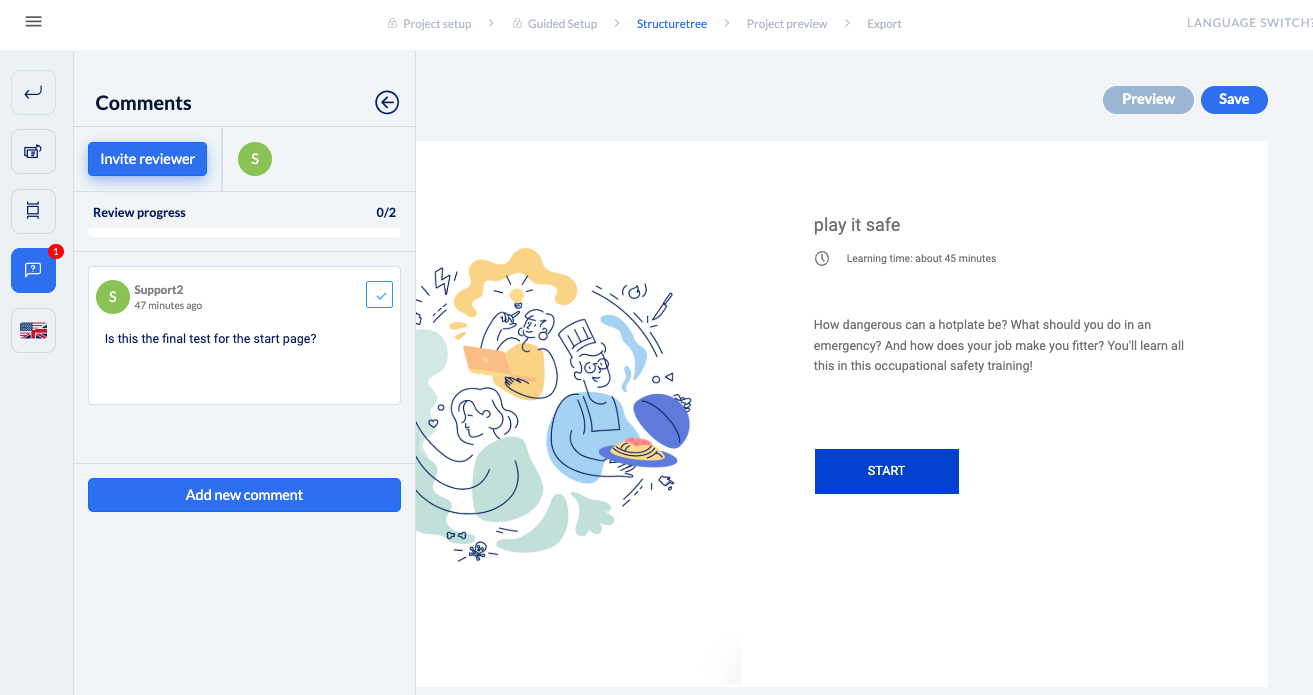
To use the review mode, select any page in the structure tree in your project and open it, e.g. the start page. Click on the button with the speech bubble in the sidebar on the left:
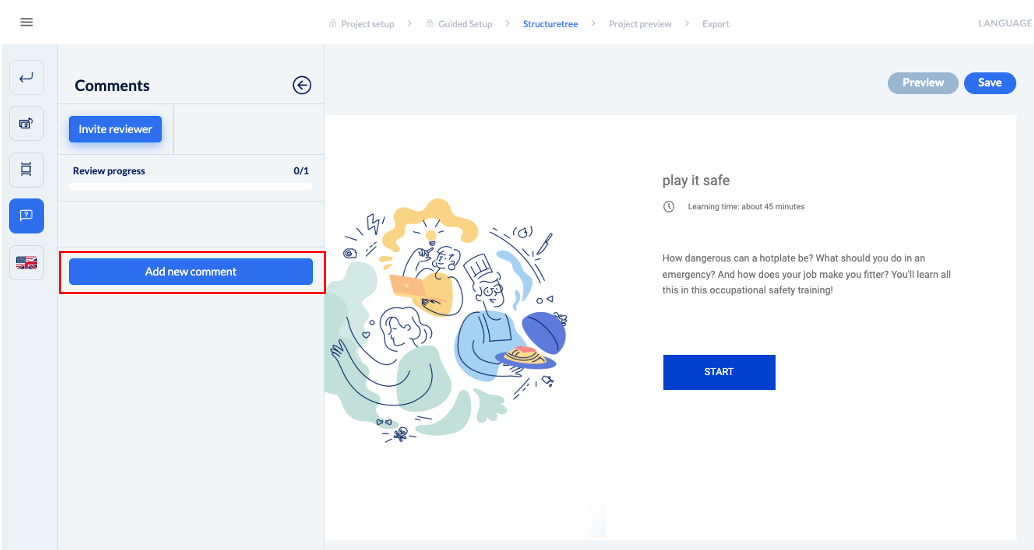
Now you can add a comment yourself using the button below:
Invite a reviewer
Alternatively, you can add a reviewer to the complete project using the button above.
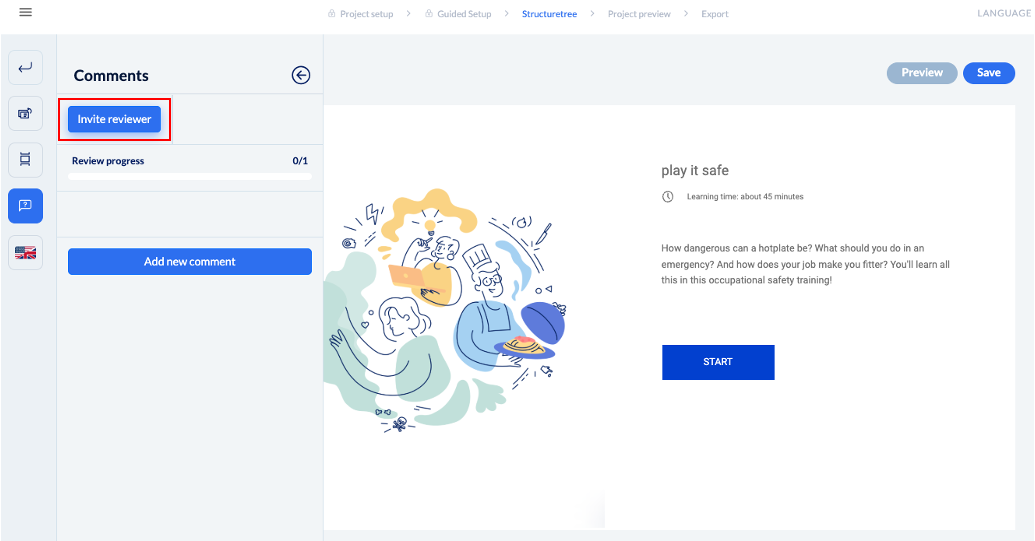
Click on ‘Add reviewer’ to open the following window:
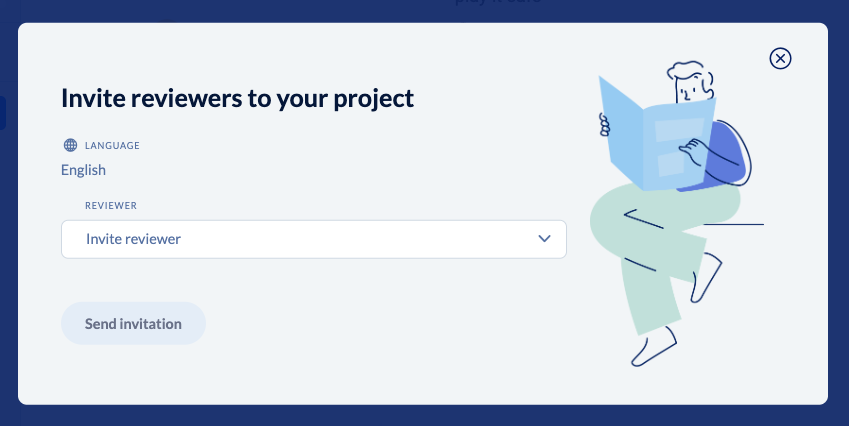
Select the desired users from the drop-down list and click on ‘Send invitation’. Important: They will NOT get an email, they’ll be informed once they log into knowtion. Please let them know that they should log into knowtion.
Who can I add as a reviewer?
You can select any user who has a knowtion account as a reviewer. There are also special reviewer accounts that you have received from us (or created yourself). These users cannot create projects in knowtion, but can only see the project preview and leave comments.

Good to know: Do you want to have a native speaker look at a project you have translated yourself, for example? Then pay attention to which language version you are in when you add the reviewer.
You can quickly and easily see the current language version by the small flag in the left-hand sidebar.
You can quickly and easily see the current language version by the small flag in the left-hand sidebar.
Reviewer successfully added
If the reviewer has been successfully added, you will now see an icon with the first letter of the invited reviewer next to the ‘Invite reviewer’ button. When hovering over the icon, the entire username is displayed.
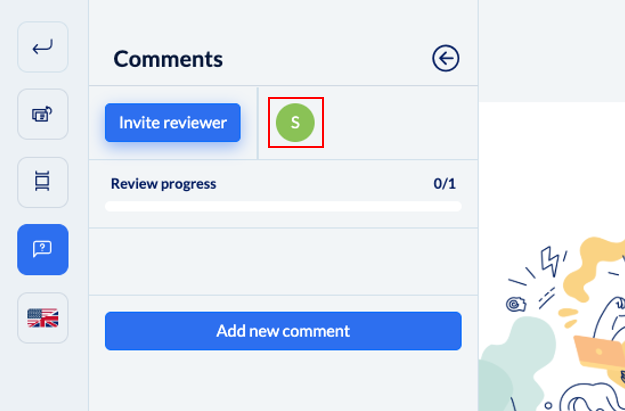
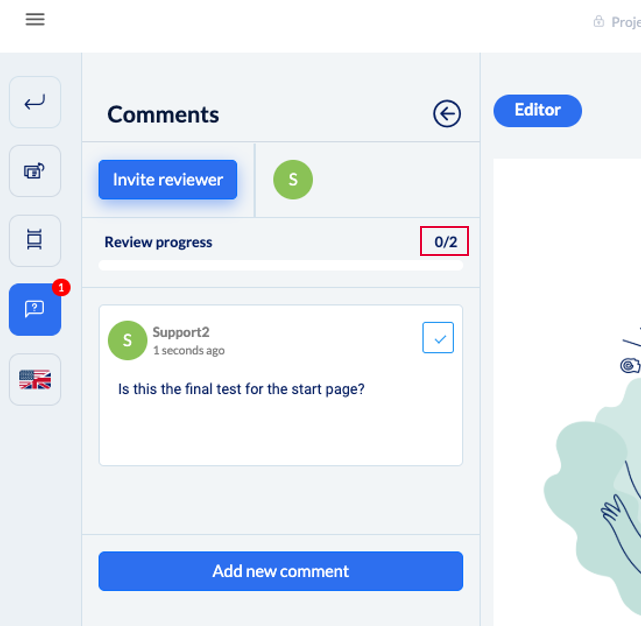
Progress indicator when editing comments
With the review progress, you can always see at a glance how many comments in the entire project have already been processed (i.e. ticked off) or how many are still open.
Both you and all reviewers can see all comments that have been written. The respective authors naturally have the option of deleting their own comments.
Review status in the project list
In the project list you can see for which projects reviews have been requested.
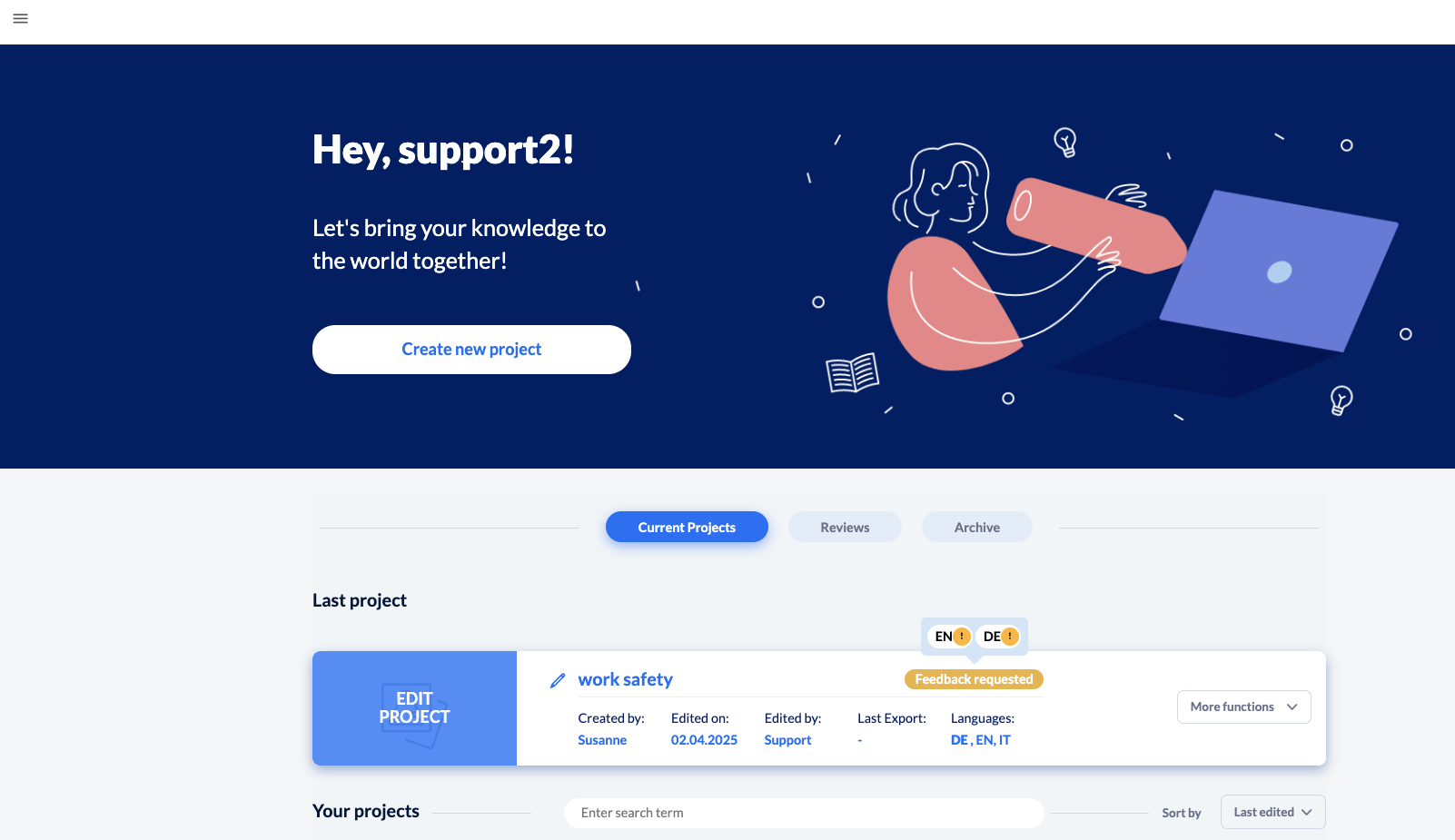
Hovering over the yellow label also shows which language version the review request applies to and what the review status is for each language version.
The tags for the reviews are changing:
Feedback requested: Reviewer has been added
Changes requested: The reviewers have entered their change requests and sent their feedback
Released: The reviewers have checked the incorporated change requests again and given their approval for the project. IMPORTANT: The ‘Released’ tag is only displayed once ALL reviewers have given their approval.

If changes are requested, the authors are asked again:

How do I recognise comments in the structure tree?
You can quickly recognise comments in the structure tree by the small red number on the respective page. The number also tells you how many comments there are on the page:
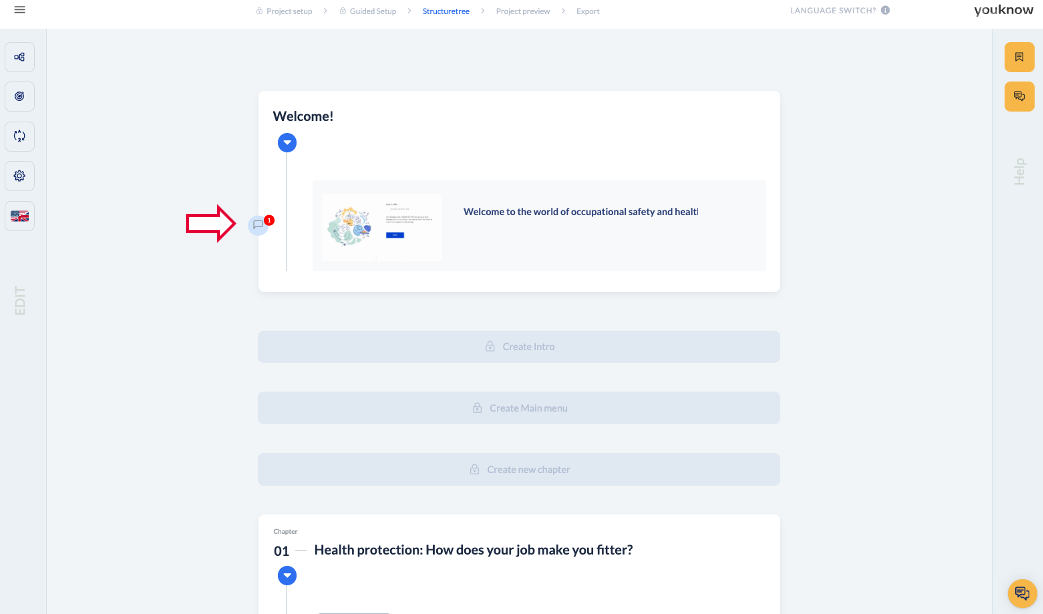
If you open this page, you can see and edit all comments:
The orange bubble with an exclamation mark next to the reviewer icon indicates that this user has submitted all comments and thus completed their first review. At the same time, ‘orange’ means that they have not yet approved the project.
Which reviewers have not yet given their approval?
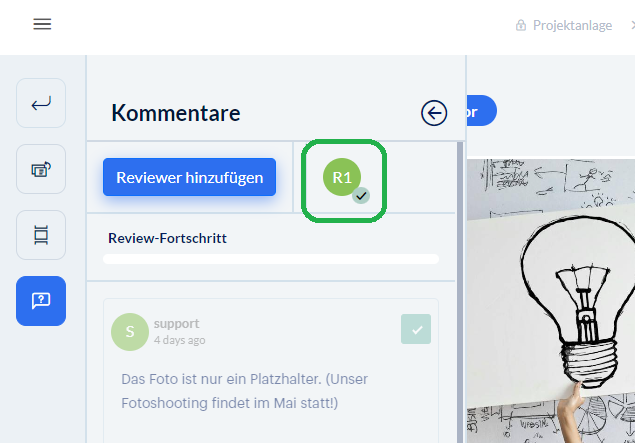
In the project, you can use the sidebar in the page editor to see which reviewers have not yet given their approval. Reviewers who have already given their approval are no longer marked with an orange exclamation mark, but with a green check.
What does the review mode look like for reviewer-only users?
Review mode from the reviewer's point of view
How does the review mode work for users with a reviewer-role?