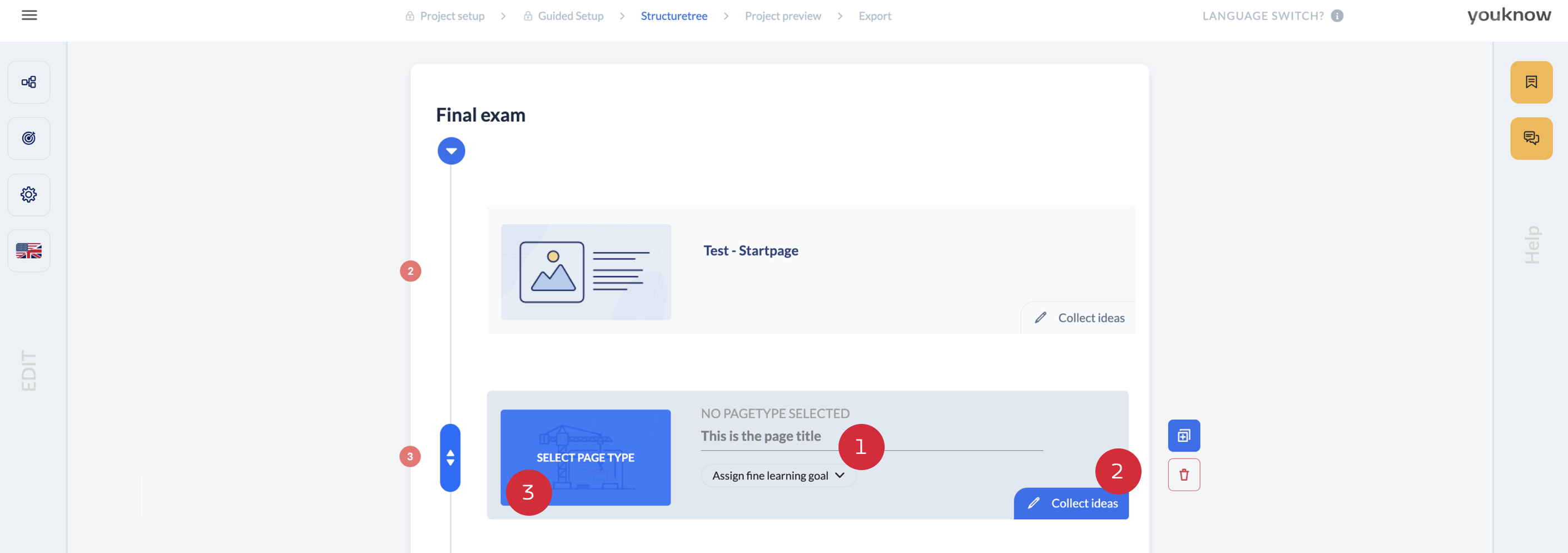
Based on your entries in the project setup and the guided setup, knowtion has developed a customised training structure for you. If this has not already been filled with content with the help of AI, we recommend you proceed as follows:
Select a page and assign a page title (1) - simply click on the page title and you can edit it
Collect ideas (2) - use the fold-out field to note down the rough content and initial ideas for the page. Ideally for all pages, this helps to get an overview and avoid getting bogged down later.
Select page type (3) - by clicking on ‘Select page type’, you can specify whether your page will be a flipcard, hot spot, video, multiple choice page, etc.
Design page - after selecting the page type, you will land in the page editor and can now edit the page as you wish.
Change page layout
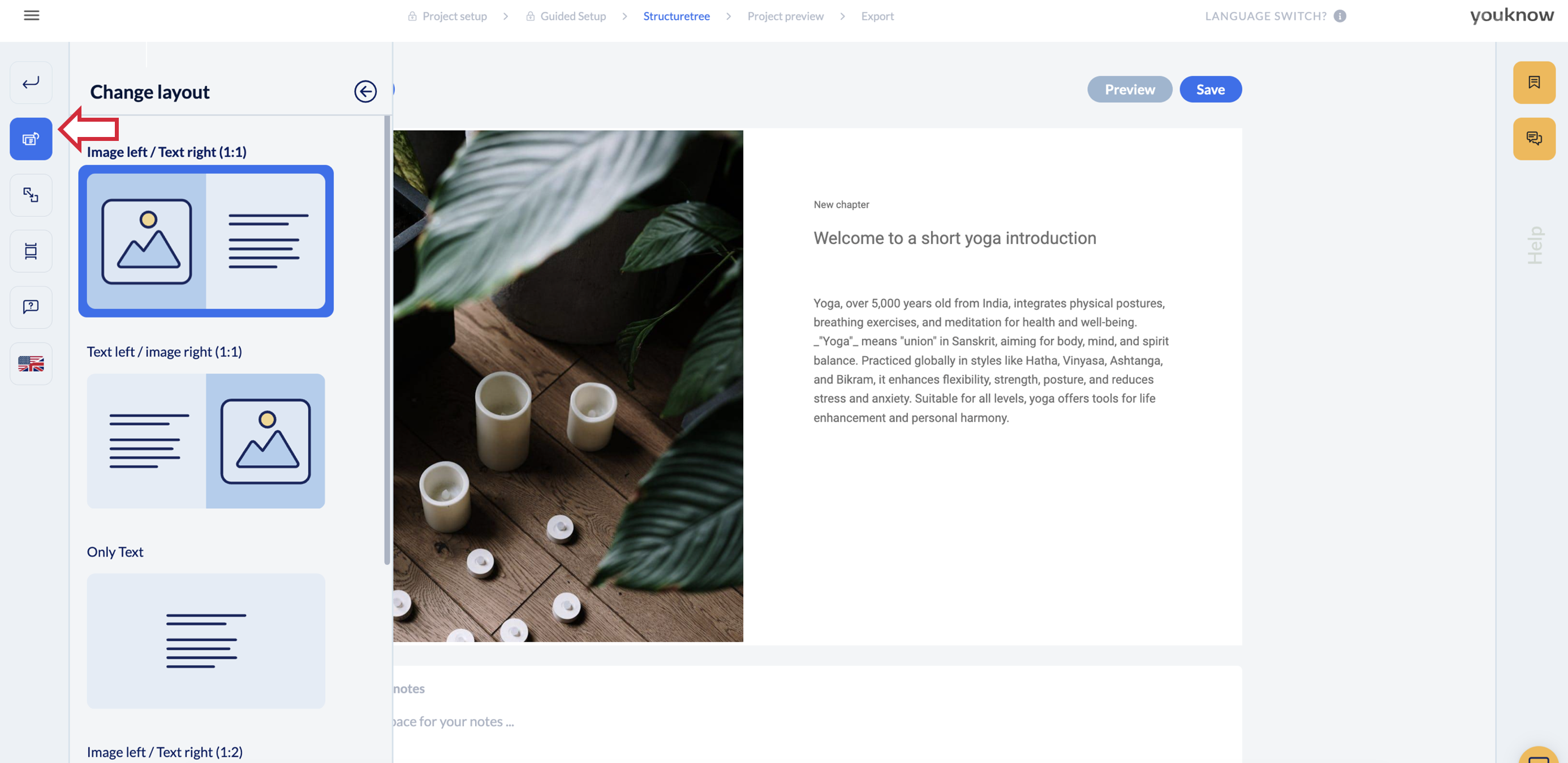
If you are currently editing a single page in the page editor, you can change the layout of the page using the ‘Change layout’ button on the left . For a text/image page, for example, you can decide whether you only want to display the text or whether you want to use text and image. In addition to the positioning of the elements, you can also choose between different proportions.
Seitentyp-Wechsel
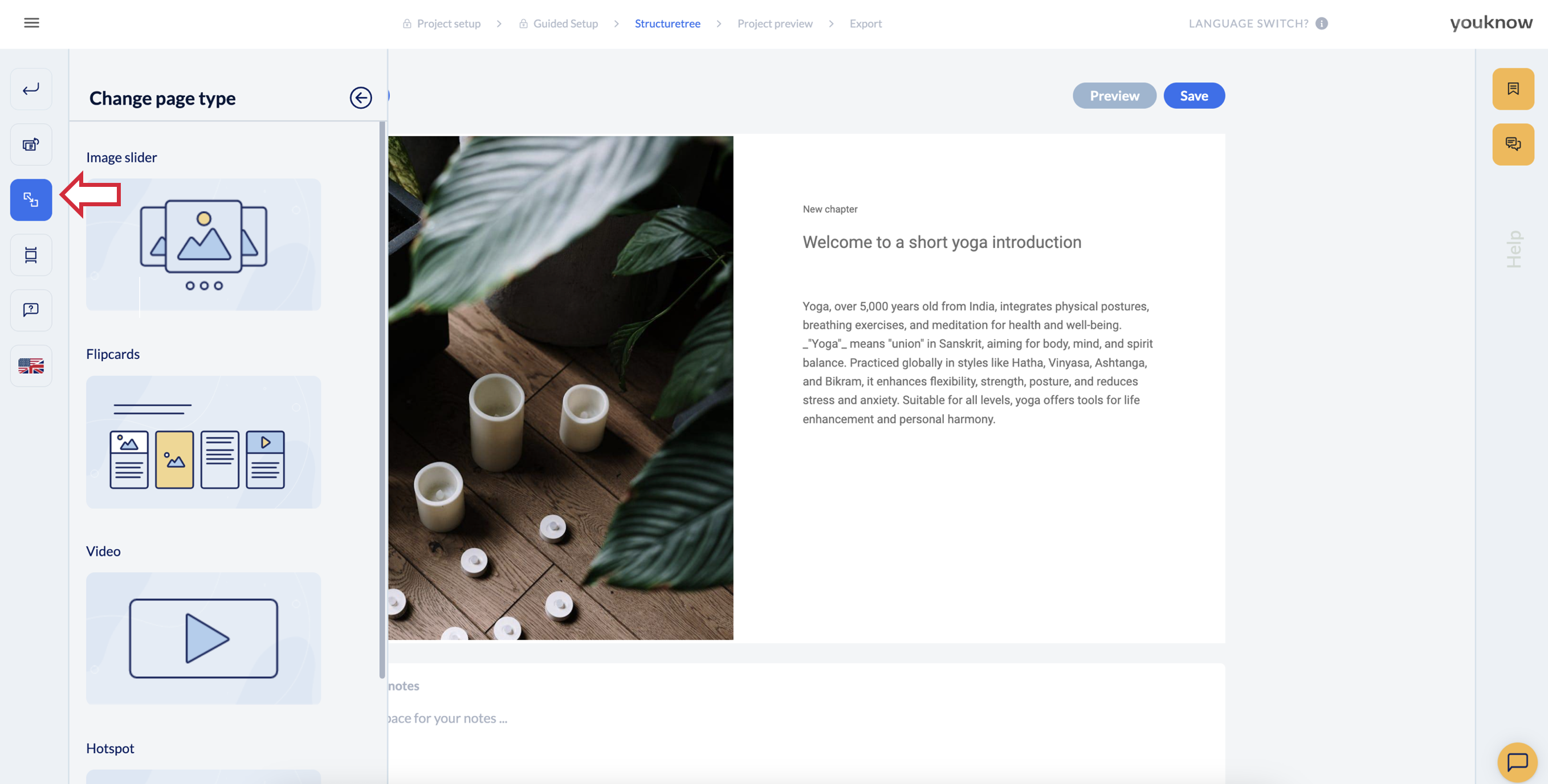
If you realise that a different page type would have been better suited to your content, you can use ‘Change page type’ to convert your page to one of the four other content page types.