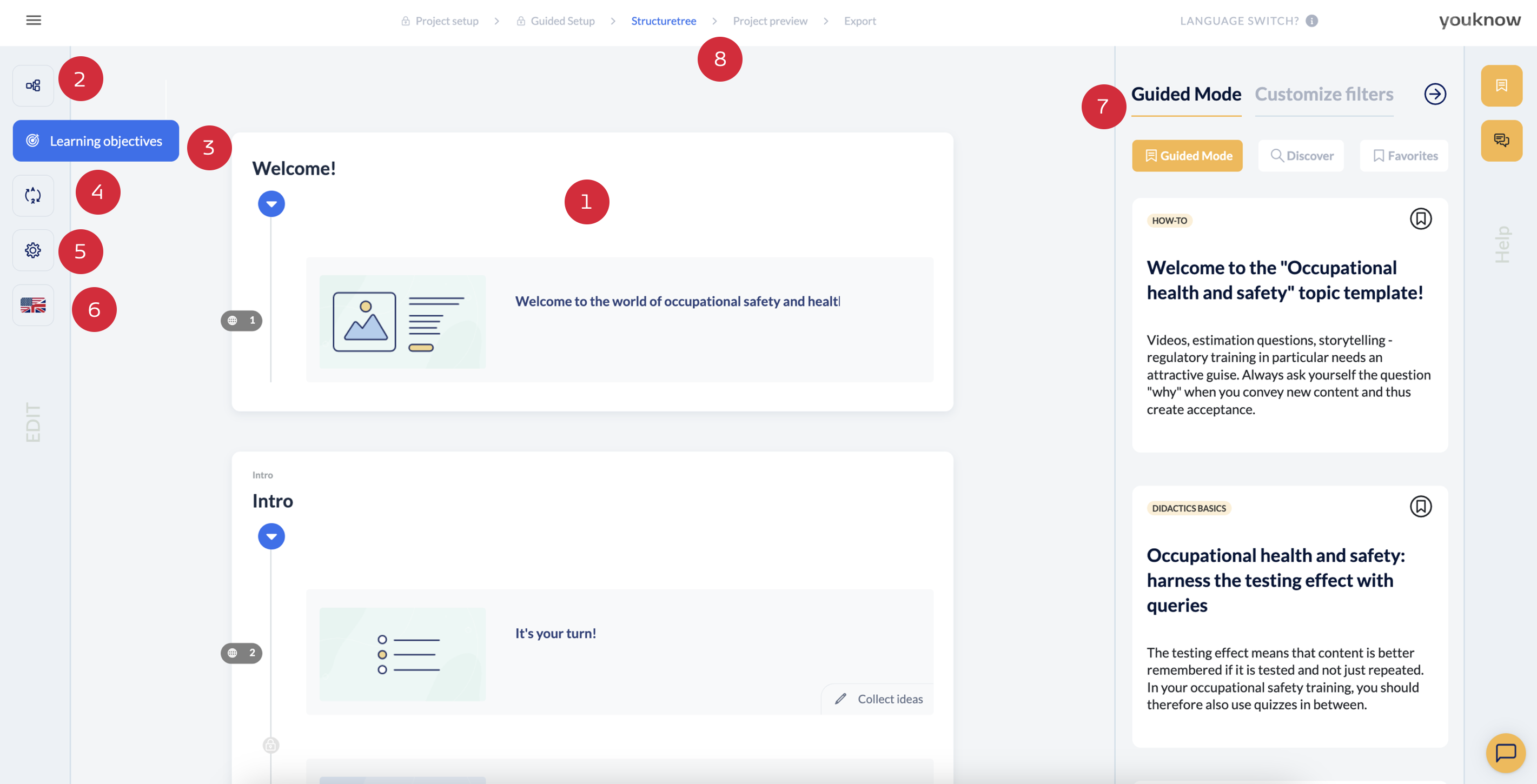
Basic orientation
The structure tree (1), consists of chapters, structure pages (start page, main menu, final page) and content pages. It’s either filled already if you used AI-support or you can start with an empty structure tree and create every page by yourself. On the left-hand side of the screen, you will find the following options:
an overview of the structure tree (2), which you can use to quickly navigate to another page
your learning objectives (3)
the possibility to translate your project (4) automatically (only works if AI-Features are allowed)
project settings (5) e.g. What percentage of the final test must be answered correctly in order to pass?
language switch (6) if you want to switch between existing language adaptions OR create a new one
The right-hand side of the screen offers you support when working on your project: there you will find the Guided Mode (7), which supports you with customised tips. At the top of the screen in the process bar (8), you can access the project preview and the export area.
You’ll finde more detailed information about the Guided Mode here:
Guided Mode
Information about the tips in the Guided Mode
Moving chapters and pages
You can move chapters in the structure tree as required. To do this, the relevant chapter should be collapsed so that not all pages are visible. You can then move the chapter using drag and drop. This automatically shifts the order of the main learning objectives. Pages can also be moved within a chapter. However, this does not affect the positioning of the associated detailed learning objective.
Editor functions - Learning objectives (3)
If you select the ‘Learning objectives’ button in the editor, you can see your rough and fine learning objectives at a glance. You can delete, edit and create new learning objectives in this view. If you add a new rough learning objective, a new chapter is automatically created. Additional detailed learning objectives, on the other hand, do not automatically affect your structure tree.
Editor functions - Project overview (2)
In the project overview in the editor (structure tree icon), you can see the table of contents with all chapter and page titles of your project at a glance so that you can quickly navigate to the right place in your structure tree.
Editor functions - project settings (5)
If you want to get an overview of your project settings or change them, click on the ‘Project settings’ button. In the project settings, you can use various parameters to define how learners can edit your project after it has been published.